How to Read CPU Memory Specifications: DDR Type, Channels, Capacity, and Speed
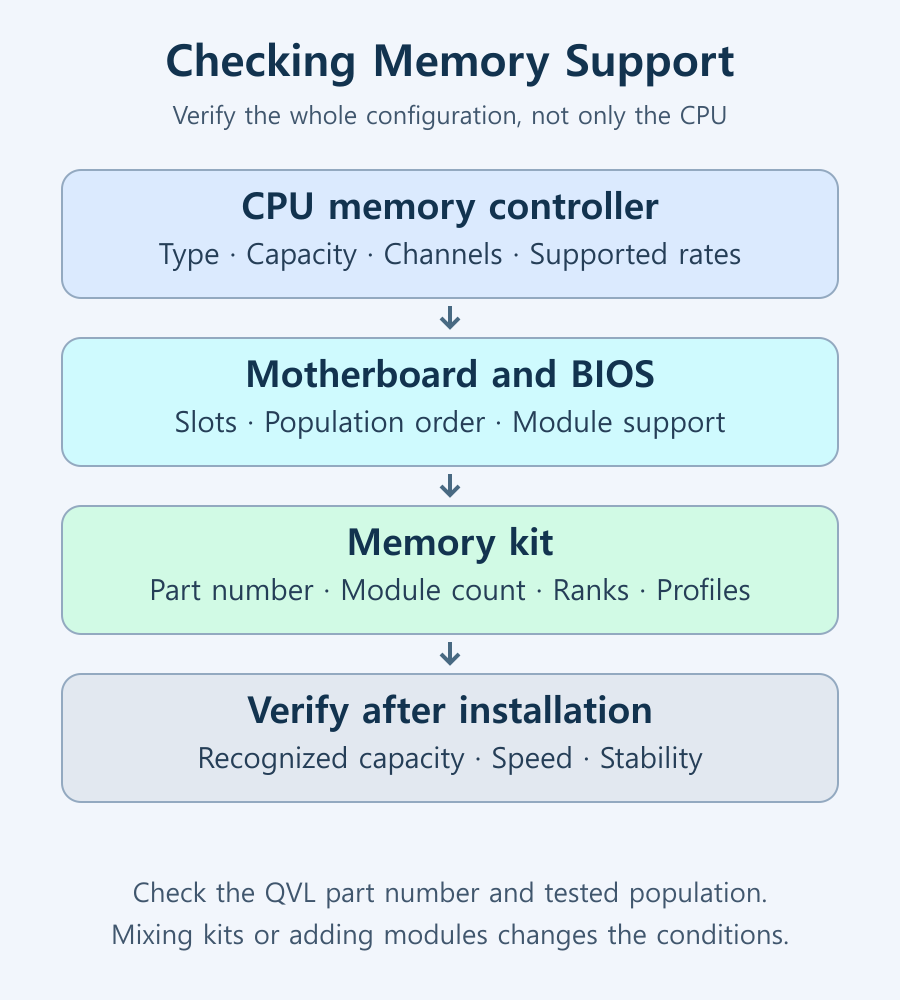
CPU memory specifications describe supported RAM types, capacity, channels, and transfer rates for particular configurations. Actual support also depends on the motherboard, BIOS, memory modules, and number installed, so the CPU specification alone does not confirm an entire system configuration.
What does CPU memory support mean?
Modern PC processors generally include a memory controller that communicates with RAM. The motherboard must implement the connections and the BIOS must recognize and configure the modules, so controller capability is not the same as complete-PC support. Some laptops use soldered memory that the owner cannot replace.
Double data rate (DDR) memory transfers data on both edges of a clock signal. DDR4 and DDR5 are different generations with different slots and electrical requirements. Even if a processor family can support either type, check which type the particular motherboard uses.
Five specifications to check first
| Specification | Meaning | Additional conditions |
|---|---|---|
| Memory type | DDR4, DDR5, LPDDR variants, and other supported types | Board slots, module format, and whether memory is replaceable |
| Maximum capacity | The controller’s supported RAM capacity | Motherboard, BIOS, and per-module limits |
| Channels | Parallel memory communication paths | Slot population and motherboard instructions |
| Maximum transfer rate | Supported data rate for a stated configuration | Module count, ranks, and overclocking status |
| ECC support | Support for error-correcting memory operation | CPU, board, BIOS, and compatible memory support together |
DIMM means dual in-line memory module. Desktop unbuffered DIMMs (UDIMMs), laptop small-outline DIMMs (SO-DIMMs), and server registered DIMMs (RDIMMs) have different compatibility requirements. Matching capacity and DDR generation is not sufficient. As Kingston’s DDR5 explanation describes, on-die error correction inside a DRAM chip is also different from system-level error-correcting code (ECC) memory support.
Distinguish MT/s from MHz
Megatransfers per second (MT/s) describes data-transfer rate; megahertz (MHz) describes frequency. A DDR-6000 transfer rate of 6000MT/s and an I/O clock of 3000MHz can describe the same operating state using different measures. Kingston’s MT/s versus MHz guide explains the distinction.
If a monitoring utility shows about half the advertised number, first identify the displayed field and unit. CPU clock speed is also a separate measurement from RAM transfer rate. A higher transfer rate does not speed every application by the same proportion: latency, capacity, channels, and cache behavior all matter.
Channels, module count, and ranks are different
Dual-channel describes the controller’s memory paths; dual-rank describes groups of memory chips selected within a module. Labels such as 1R and 2R identify rank count, which cannot always be inferred from chips appearing on one or both sides. Filling four slots does not automatically turn a dual-channel CPU into a quad-channel processor.
Entries such as 2×1R and 4×2R identify support conditions by module count and rank configuration. For example, the Ryzen 7 9700X specifications list DDR5-5600 for 2×1R and 2×2R, and DDR5-3600 for 4×1R and 4×2R. Those values are an example for that model, not universal speeds for all CPUs.
Adding modules changes the controller’s electrical load and signal conditions and can lower supported speed. Intel’s memory-speed guidance also notes that maximum support can change when multiple DIMMs populate a channel. If you need both high capacity and high speed, compare population-specific support first.
Official supported speeds versus XMP and EXPO
Intel Extreme Memory Profile (XMP) and AMD Extended Profiles for Overclocking (EXPO) use profiles stored on compatible modules. Check Intel’s XMP configuration guidance and AMD’s EXPO explanation for their support conditions.
Installing a high-speed profile kit does not guarantee automatic operation at its advertised profile rate or stability in every combination. Operation outside CPU specifications can be overclocking and can affect warranty coverage, so check the CPU, system, and memory manufacturers’ conditions. If stability and capacity are the priorities, begin with a supported standard configuration.
Checks before purchase and after installation
- Record the exact CPU’s memory types, maximum capacity, channels, and configuration-specific transfer rates from its official page.
- Read the motherboard manual for module format and recommended slots. Follow its specified population order when using two modules.
- Check the qualified vendor list (QVL) for the exact part number, CPU family, capacity, module count, and BIOS conditions. Absence from the list alone does not prove incompatibility; ask the manufacturer if needed.
- After installation, verify recognized capacity and speed in BIOS and the OS. Check normal workloads and memory tests for errors. If problems follow a profile change, restore that setting to default first.
Mixing another kit or installing more modules than the validated configuration changes the conditions, even if a kit is on the QVL. With integrated graphics, RAM also supports graphics work, so consider the shared-memory characteristics of integrated GPUs. Plan an upgrade around a stable configuration that meets your capacity needs rather than simply counting empty slots.

Monitor / USB-C Video, Charging, and USB Data: What to Check
Check the separate requirements for USB-C monitor video, USB data, and laptop charging. Learn how to select ports and cables, assess bandwidth, and troubleshoot each function.

Monitor / KVM, PBP, and PIP: Differences and Two-Computer Setup
Distinguish KVM input and USB switching from PBP and PIP picture modes. Set up two computers with the correct video, upstream mapping, and peripheral checks.

Monitor / Buying a Monitor Arm: VESA, Weight, and Desk Checks
Check VESA fit, screw requirements, minimum and maximum load, center of gravity, and desktop construction. Follow practical steps for installation, tension adjustment, and cable clearance.

What Is CPU Clock Speed? Base Clock, Boost Clock, and Performance
Learn what GHz measures, how base and maximum boost frequencies differ, and why operating speed changes. Find out which specifications and real workloads to compare alongside clock speed.

Monitor / Glossy vs. Matte Screens: Differences and How to Choose
Compare glossy and matte monitor reflections, surface texture, and readability. Choose using your room lighting and content, and check the conditions for films and cleaning.
What Are CPU Cores? Core Counts and Performance Explained
Understand physical CPU cores, logical processors, hybrid core layouts, and the limits of core-count comparisons. Learn how to check your PC and judge processors for your workload.

Laser Printers / Features, Advantages, and Disadvantages
Understand how laser printers work, what toner and drums do, and where the technology's strengths and limitations matter. Compare document printing, consumable costs, paper compatibility, and inkjet alternatives to decide whether a laser printer suits your needs.

Home Printer Buying Guide / Printing Technologies, Running Costs, and Essential Features
Choose a home printer by matching its printing technology, maintenance needs, and total running costs to your usage. Compare inkjet, ink tank, and laser options, along with two-sided printing, scanning, wireless connections, and installation requirements.
How to Read CPU Memory Specifications: DDR Type, Channels, Capacity, and Speed
Read a CPU’s RAM type, maximum capacity, channel count, and configuration-dependent transfer rates. Check DIMMs, ranks, XMP or EXPO profiles, motherboard QVLs, and BIOS support before upgrading.

What Are CPU Threads? Cores, Logical Processors, and Software Threads
Learn the difference between hardware threads, software threads, logical processors, and physical cores. Understand SMT resource sharing and check the counts reported by Windows.