Monitor / Glossy vs. Matte Screens: Differences and How to Choose
Glossy screens generally show more distinct reflections, while matte surfaces spread reflected light so reflected objects look less sharply defined. Neither is always better: window and lamp placement, together with the actual surface treatment, determine which works better in your room. Compare text, image appearance, and how much reflections obscure the content under your normal conditions.
Panel type and surface treatment are separate
IPS, VA, and OLED describe display structures or operating technologies; glossy and matte describe optical properties of the screen surface. Monitors with the same panel type (Korean) can feel different because their surface treatments differ. OLED does not always mean glossy, and IPS does not always mean matte.
Specifications may use glossy, matte, anti-glare (AG), and anti-reflection (AR). Diffusing a reflected image is not the same as reducing the amount of reflection, and treatments can be combined. A single marketing label does not fully describe a surface. BenQ’s discussion of glossy and matte screens also considers room lighting when choosing between them.
Spreading light is different from eliminating it
A glossy surface may show a relatively clear reflection of a window frame or your face. These reflections can be less distracting with a dark background behind you and controlled lighting, but a bright window behind the viewer may obscure dark content.
A matte surface makes reflected objects less sharply defined but can spread the light across a wider area. A bright light source may create a hazy patch. Matte treatment does not remove all reflections, so strong lighting can require repositioning either type of monitor.
| Condition | What to check on glossy screens | What to check on matte screens |
|---|---|---|
| Windows and ceiling lights | Distinct reflections covering content | Broad patches of diffused light |
| White documents | Reflections and small-text readability | Surface grain and small-text appearance |
| Dark video | Objects reflected over black areas | Dark areas lifted by ambient light |
| Changing position | Reflections moving across the image | Surface appearance from different angles |
Compare clarity and blacks under the same conditions
Some people prefer the clear appearance of a less diffusive surface, while some matte treatments show visible texture on small text or white backgrounds. Coating strength, pixel density, and optical structure vary. Avoid assuming every glossy screen is sharper or every matte screen looks blurry.
The perceived depth of black depends on contrast (Korean) and room lighting as well as reflections. Check white documents and dark scenes rather than judging only very bright shop demonstrations. Different camera exposure and angle can exaggerate or conceal reflection differences in photographs.
Visual comfort also depends on brightness, text size, distance, bright light sources, and breaks. A coating alone cannot be assumed to eliminate eye fatigue or protect eyesight. Adjust the whole viewing environment rather than treating a surface label as a health guarantee.
How to choose for your room
- Sit at your desk and identify windows or lights behind you that may reflect in the screen. Check daytime and nighttime conditions.
- See whether changing the monitor angle, position, curtains, or lighting direction can reduce the problem.
- Where possible, view your usual white documents, small text, and dark photographs on the candidate monitors from the same distance.
- Compare whether distinct reflections, diffuse haze, or visible surface texture is more distracting.
- Judge at your intended scaling and brightness, and check return or exchange conditions.
A surface that reduces distinct reflection images may be useful in an office where lighting is hard to control. In a dark workspace, sensitivity to surface texture may lead to a different choice. Choose by what interferes least at your desk. Separate surface reflections from viewing-angle behavior (Korean) when looking from the side.
Films and cleaning can change the surface conditions
Adding a matte film can affect clarity and color appearance as well as reflections, and may introduce adhesive-removal risks. Check the manufacturer’s approval and installation/removal conditions before applying one. A film does not guarantee the same result as a monitor’s original matte treatment.
Turn off the monitor and follow its approved cleaning method and cloth guidance. Do not spray cleaner directly on the screen or scrub it strongly. Alcohol and glass cleaner should not be recommended universally. Consult the applicable care instructions, such as LG’s monitor screen-cleaning guide.
A patch on a new screen could be surface contamination, reflection, or a uniformity issue. The new-monitor inspection guide explains how changing lighting and test patterns can help identify a mark that remains in the same screen position.
M.2 SSD Overheating: Symptoms, Temperature Checks, and Cooling
Learn how to distinguish possible thermal throttling from other SSD slowdowns, check temperatures with CrystalDiskInfo or manufacturer tools, and improve cooling using model-specific guidance.
Monitor / Color Depth Explained: 8-Bit, 10-Bit, and FRC
Compare the RGB levels in 8-bit and 10-bit signals and understand FRC. Learn how input, panel, and LUT precision differ and how to check a 10-bit output path.
Monitor / How to Check a New Monitor for Pixel Defects and Uniformity
Inspect a new monitor using solid colors, uniformity patterns, and your real workload. Distinguish pixel defects, content artifacts, reflections, and backlight effects, and prepare support records.
What Is Integrated Graphics? Differences from a Graphics Card and How to Choose
Compare integrated graphics with a separate graphics card, including shared RAM and upgrade options. Check CPU graphics support, workload requirements, and common causes of missing display output.
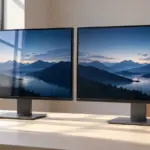
Monitor / Glossy vs. Matte Screens: Differences and How to Choose
Compare glossy and matte monitor reflections, surface texture, and readability. Choose using your room lighting and content, and check the conditions for films and cleaning.
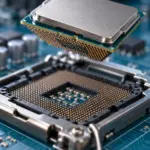
What Is a CPU Socket? Types and Motherboard Compatibility Checks
Understand CPU sockets and LGA, PGA, and BGA connections. Follow a practical checklist for motherboard CPU support, BIOS versions, memory, power, and cooler compatibility.

Monitor / Buying a Monitor Arm: VESA, Weight, and Desk Checks
Check VESA fit, screw requirements, minimum and maximum load, center of gravity, and desktop construction. Follow practical steps for installation, tension adjustment, and cable clearance.
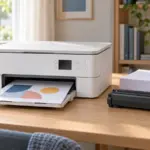
Home Printer Buying Guide / Printing Technologies, Running Costs, and Essential Features
Choose a home printer by matching its printing technology, maintenance needs, and total running costs to your usage. Compare inkjet, ink tank, and laser options, along with two-sided printing, scanning, wireless connections, and installation requirements.
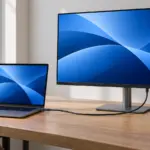
Monitor / USB-C Video, Charging, and USB Data: What to Check
Check the separate requirements for USB-C monitor video, USB data, and laptop charging. Learn how to select ports and cables, assess bandwidth, and troubleshoot each function.
Monitor / KVM, PBP, and PIP: Differences and Two-Computer Setup
Distinguish KVM input and USB switching from PBP and PIP picture modes. Set up two computers with the correct video, upstream mapping, and peripheral checks.