What Is CPU Cache? L1, L2, L3, and Their Effect on Performance
CPU cache is fast memory that keeps some instructions and data close to the processor, reducing the need to wait for main memory. L1, L2, and L3 identify cache levels: nearer levels are generally smaller and faster, while outer levels provide more capacity.
Why does a CPU need cache?
Running programs and their data reside in random access memory (RAM). If execution units had to wait for RAM on every access, they would spend more time idle. Caches exploit the likelihood that recently used or nearby data will be needed again. Repeatedly reading the same small array in a loop is a useful example.
Finding the required content in a cache is a cache hit; failing to find it there is a cache miss. A miss can require access to another level or main memory, adding waiting time. Programs have different access patterns and hit rates, so an increase in cache capacity does not benefit every workload equally.
How L1, L2, and L3 differ
| Level | Typical role | What to check in a specification |
|---|---|---|
| L1 | A small cache close to execution, often separated into instruction and data caches | Per-core capacity and instruction/data distinctions |
| L2 | A larger nearby cache that complements L1 | Whether it is private to a core or shared by a group of cores |
| L3 | A larger cache level available to multiple cores | Sharing boundaries and distribution across chips or core groups |
This describes common roles rather than a universal wiring diagram. Some cores share L2, and a multi-chip CPU may not provide identical access to all of its L3 capacity as one uniform pool. Intel’s discussion of memory hierarchy illustrates how sharing and access depend on processor structure.
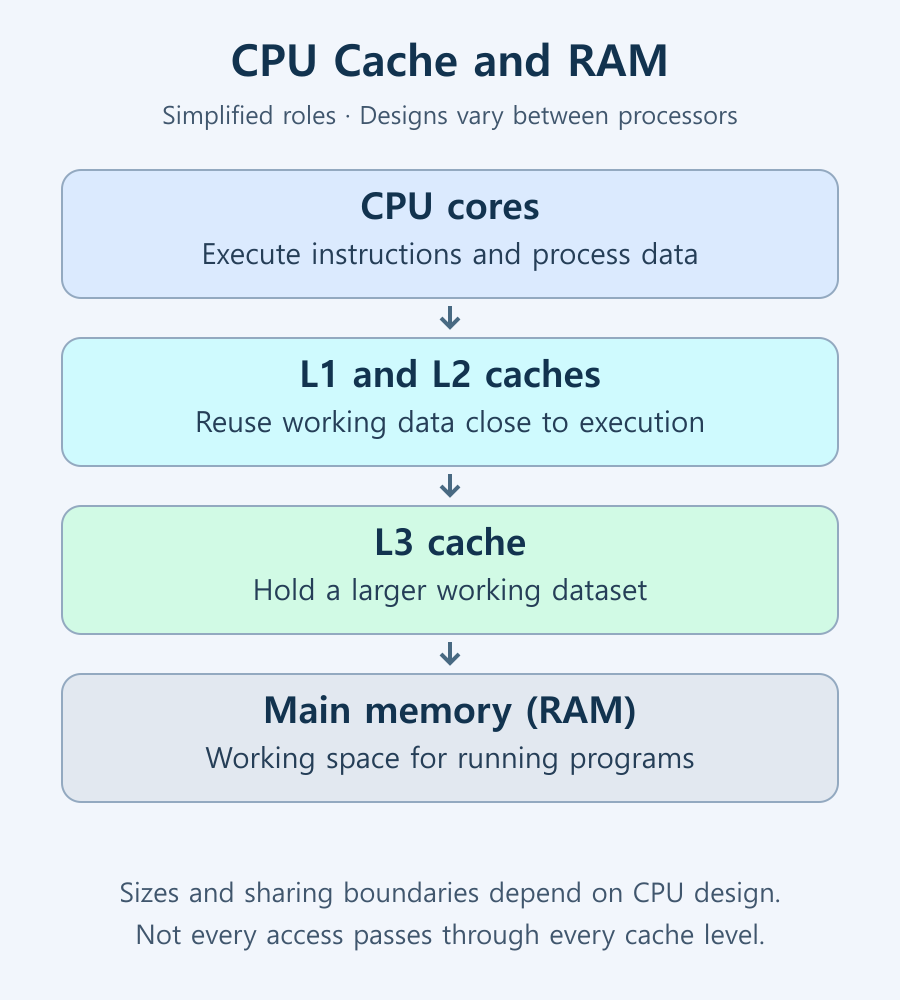
Can cache replace RAM or an SSD?
A larger cache does not replace the RAM needed by a large program or the SSD needed to store files. Cache is a small, fast resource managed by hardware for active work. RAM holds the working state of running programs, while an SSD retains files when power is off.
If insufficient RAM causes frequent movement of data to storage, more CPU cache does not make that capacity problem disappear. Conversely, having enough RAM does not eliminate all delays caused by cache misses. This is why CPU memory specifications distinguish capacity from transfer rate and other characteristics.
Is a larger cache always faster?
The important question is whether frequently reused working data fits in the cache. If a small dataset already fits in a nearby level, a larger outer cache may add little benefit. If extra capacity avoids repeated RAM accesses, it can help. Streaming through a large dataset once is a different access pattern again.
AMD’s Ryzen X3D announcement describes processors using 3D V-Cache. The presence of that technology and the size of a performance gain in a specific application are separate questions. Game choice, graphics settings, frequency, and power conditions still matter.
How to compare cache specifications
- Open the exact model’s manufacturer page and separate L1, L2, and L3 values. A list such as AMD’s processor specifications can help identify the individual fields.
- Check whether a value is per core or a total. Do not treat total L2 and L3-only capacity as the same measurement.
- Consider core count and structure. A larger total L2 can result from adding more cores rather than giving each core a larger cache.
- Compare the actual workload under equivalent conditions. If a larger-cache model costs more, establish whether your software benefits from that difference.
Adding L2 and L3 into one total does not create a reliable performance ranking. The levels differ in access characteristics and sharing. Understanding CPU core counts and clock speed alongside cache helps you read the specification sheet more accurately.
When should cache influence a buying decision?
For a cache-sensitive game or repeated professional task, prioritize benchmarks of that workload. Look for consistent improvements in frame times or completion time, not only a favorable average. If the GPU or memory configuration differs, the result cannot be attributed to cache alone.
Ordinary PC maintenance does not require manually clearing CPU cache or allocating its size. When a system is slow, first investigate evidence of RAM pressure, storage waiting, thermal or power limits, and background activity rather than assuming cache capacity is the cause.
M.2 SSD Overheating: Symptoms, Temperature Checks, and Cooling
Learn how to distinguish possible thermal throttling from other SSD slowdowns, check temperatures with CrystalDiskInfo or manufacturer tools, and improve cooling using model-specific guidance.

How to Read CPU Benchmarks: Single-Thread, Multi-Thread, and Gaming Performance
Compare CPU benchmark versions, test types, and system conditions before ranking scores. Learn how single-thread results, gaming frame times, and completion times relate to your own workload.
What Is CPU TDP? Power Consumption, Power Limits, and Heat Explained
Separate thermal design specifications from actual CPU power and temperature. Learn how to read Intel PBP and MTP, AMD PPT, monitoring readings, and cooling requirements together.

What Is CPU Cache? L1, L2, L3, and Their Effect on Performance
Understand how CPU cache reduces memory waiting time, how L1, L2, and L3 differ, and how to read capacity and sharing specifications. Learn when larger caches can help real workloads.

Monitor / KVM, PBP, and PIP: Differences and Two-Computer Setup
Distinguish KVM input and USB switching from PBP and PIP picture modes. Set up two computers with the correct video, upstream mapping, and peripheral checks.
What Is a CPU Socket? Types and Motherboard Compatibility Checks
Understand CPU sockets and LGA, PGA, and BGA connections. Follow a practical checklist for motherboard CPU support, BIOS versions, memory, power, and cooler compatibility.

What Are CPU Cores? Core Counts and Performance Explained
Understand physical CPU cores, logical processors, hybrid core layouts, and the limits of core-count comparisons. Learn how to check your PC and judge processors for your workload.

Monitor / Color Depth Explained: 8-Bit, 10-Bit, and FRC
Compare the RGB levels in 8-bit and 10-bit signals and understand FRC. Learn how input, panel, and LUT precision differ and how to check a 10-bit output path.

What Are CPU Threads? Cores, Logical Processors, and Software Threads
Learn the difference between hardware threads, software threads, logical processors, and physical cores. Understand SMT resource sharing and check the counts reported by Windows.
How to Read CPU Memory Specifications: DDR Type, Channels, Capacity, and Speed
Read a CPU’s RAM type, maximum capacity, channel count, and configuration-dependent transfer rates. Check DIMMs, ranks, XMP or EXPO profiles, motherboard QVLs, and BIOS support before upgrading.