Monitor / USB-C Video, Charging, and USB Data: What to Check
To carry monitor video, charge a laptop, and connect USB peripherals through one USB-C cable, the laptop, monitor, and cable must support each required function. USB-C describes a connector, so a physically matching port does not guarantee video output or sufficient charging power. Check the three functions separately, then confirm the combination you intend to use.
Identical connectors can have different functions
A laptop’s USB-C port may support data and charging without external video output. A monitor may also have a video-capable USB-C input alongside ports intended only for USB devices. If the port symbols are unclear, read the exact model’s port specifications and manual.
| Function | Required checks |
|---|---|
| Video | Laptop video output, monitor video input, and a video-capable cable |
| Charging | Monitor power output, laptop charging input, and cable power rating |
| USB hub | Computer-to-monitor upstream connection and peripheral downstream ports |
VESA’s DisplayPort over USB-C guide explains DisplayPort video over USB-C. Not every USB-C port supports this Alternate Mode. Thunderbolt and USB4 configurations also require the appropriate support throughout the device and connection path.
Separate the three paths inside one connection
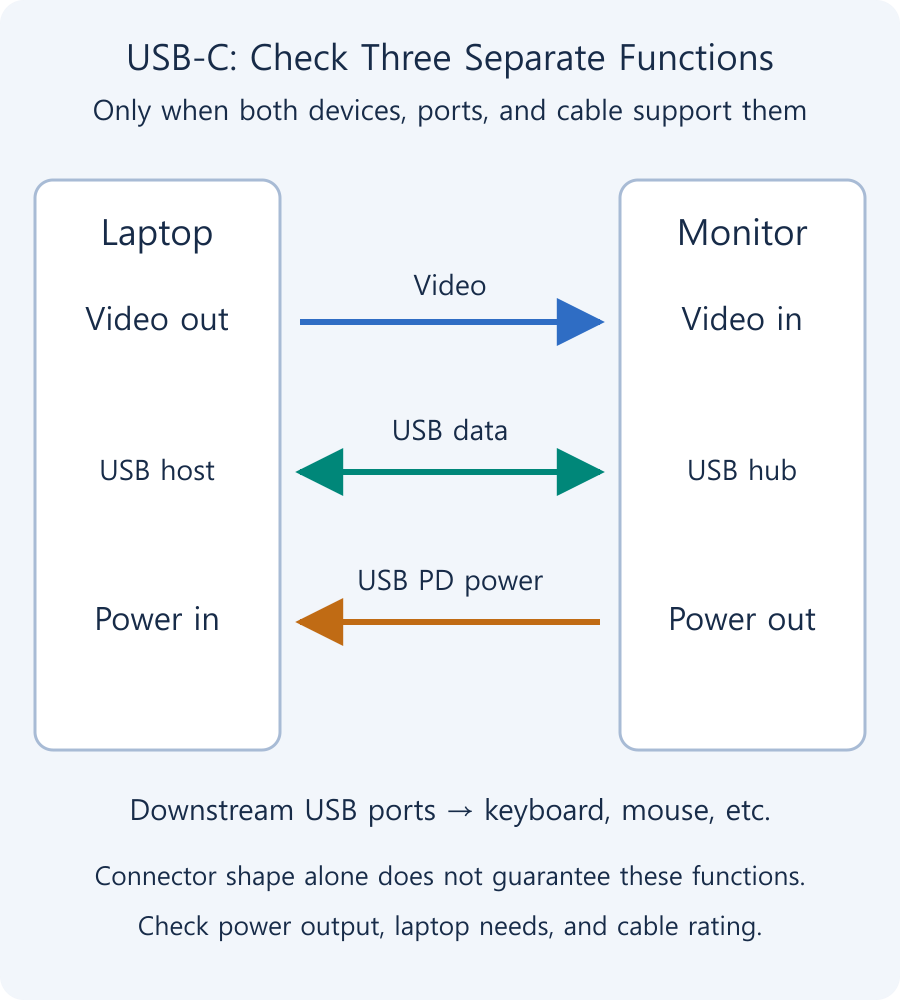
Video travels from the computer to the monitor, USB data travels between the computer and peripherals, and charging power travels from the supplying device to the receiving device. The diagram shows a connection that supports all three. One connector does not make their directions or requirements identical.
The USB connection toward the computer is called upstream; ports for a keyboard, mouse, and other peripherals are downstream. If the monitor receives only video through HDMI or conventional DisplayPort, its USB hub may need a separate upstream cable. Having HDMI (Korean) or DisplayPort (Korean) video input does not by itself connect the USB hub.
Match charging to the laptop’s requirements
USB Power Delivery (USB PD) lets connected devices negotiate power conditions. The high power levels described in USB-IF’s USB PD overview are not available from every monitor. Check the monitor’s laptop-charging output, the laptop’s USB-C charging support and recommended supply, and the cable’s power rating together.
If the monitor supplies less power than the laptop needs during demanding work, charging may be slow or the battery may discharge while connected. Check battery status and performance during your workload rather than relying only on a charging icon. Use a separate approved adapter if needed, following the laptop manufacturer’s rules for simultaneous power connections.
Charging and USB-hub operation while the monitor is in standby vary by product. If charging stops in sleep mode, check the monitor’s power mode and USB standby-power settings. Do not assume all USB-C ports on a monitor provide the same charging output.
Check video bandwidth and USB speed together
Higher resolution, refresh rate, and color depth require more video bandwidth. In some DisplayPort Alternate Mode configurations, high-speed lanes allocated to video affect the conditions available for high-speed USB data. A monitor’s high-resolution or high-data-speed priority option can therefore change available video modes or USB speed.
There is no single resolution or speed limit for every USB-C product. Link specification, lane allocation, compression support, and intermediate devices matter. Consult the supported-timing table for your required combination of resolution (Korean), refresh rate (Korean), and color depth.
Alongside USB-IF’s cable and connector resources, read the actual cable’s video, data-speed, and power specifications. A charging cable, adapter, extension, or dock may not pass every function supported by the devices themselves.
A first-connection checklist
- Identify the video-capable USB-C ports and charging output in the laptop and monitor manuals. Connect power to the monitor.
- Connect the devices directly with a cable supporting the required video, data, and power conditions, and select the USB-C monitor input.
- In Windows Settings → System → Display, arrange the screens, then check resolution and refresh rate in Advanced display.
- Check laptop charging and connect a keyboard or mouse to the monitor’s downstream ports.
- If you use external storage, check the supported USB speed and stability separately. Safely remove the device after testing, and check sleep/wake behavior.
For two computers, check whether changing video input also changes the USB upstream connection. This depends on the monitor’s KVM and multi-input display features.
When only one function works
| Symptom | Check first |
|---|---|
| Charges, but no picture | Laptop video support, cable capability, and selected input |
| Picture works, but charging is insufficient | USB PD output, cable rating, and laptop power requirements |
| Picture works, but keyboard does not | USB data support, upstream connection, and input mapping |
| Slow USB devices | Cable/hub specification and video/data-priority setting |
| Disconnects after sleep | Monitor standby power, laptop sleep settings, and firmware guidance |
Start with a direct connection without a dock or extension, then change one condition at a time using a known working cable. Record previous settings so you can undo the most recent change and narrow down the cause.
What Are CPU Threads? Cores, Logical Processors, and Software Threads
Learn the difference between hardware threads, software threads, logical processors, and physical cores. Understand SMT resource sharing and check the counts reported by Windows.
What Are CPU Cores? Core Counts and Performance Explained
Understand physical CPU cores, logical processors, hybrid core layouts, and the limits of core-count comparisons. Learn how to check your PC and judge processors for your workload.
M.2 SSD Overheating: Symptoms, Temperature Checks, and Cooling
Learn how to distinguish possible thermal throttling from other SSD slowdowns, check temperatures with CrystalDiskInfo or manufacturer tools, and improve cooling using model-specific guidance.
What Is a CPU Socket? Types and Motherboard Compatibility Checks
Understand CPU sockets and LGA, PGA, and BGA connections. Follow a practical checklist for motherboard CPU support, BIOS versions, memory, power, and cooler compatibility.
Monitor / KVM, PBP, and PIP: Differences and Two-Computer Setup
Distinguish KVM input and USB switching from PBP and PIP picture modes. Set up two computers with the correct video, upstream mapping, and peripheral checks.

Laser Printers / Features, Advantages, and Disadvantages
Understand how laser printers work, what toner and drums do, and where the technology's strengths and limitations matter. Compare document printing, consumable costs, paper compatibility, and inkjet alternatives to decide whether a laser printer suits your needs.
What Is Integrated Graphics? Differences from a Graphics Card and How to Choose
Compare integrated graphics with a separate graphics card, including shared RAM and upgrade options. Check CPU graphics support, workload requirements, and common causes of missing display output.

Monitor / Buying a Monitor Arm: VESA, Weight, and Desk Checks
Check VESA fit, screw requirements, minimum and maximum load, center of gravity, and desktop construction. Follow practical steps for installation, tension adjustment, and cable clearance.
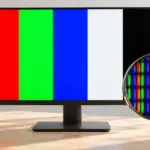
Monitor / How to Check a New Monitor for Pixel Defects and Uniformity
Inspect a new monitor using solid colors, uniformity patterns, and your real workload. Distinguish pixel defects, content artifacts, reflections, and backlight effects, and prepare support records.

Home Printer Buying Guide / Printing Technologies, Running Costs, and Essential Features
Choose a home printer by matching its printing technology, maintenance needs, and total running costs to your usage. Compare inkjet, ink tank, and laser options, along with two-sided printing, scanning, wireless connections, and installation requirements.