What Is a CPU Socket? Types and Motherboard Compatibility Checks
A CPU socket secures a processor to the motherboard and provides its electrical connections. The CPU and motherboard must use a compatible socket, but matching socket names alone do not guarantee support. Before buying or upgrading, check the exact motherboard model’s CPU support list and required BIOS version.
What does a CPU socket connect?
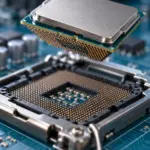
Socket contacts deliver power and carry signals between the processor and components such as memory and peripherals. The retention mechanism and alignment markings help place the CPU correctly. Differences in contact layout and electrical requirements can make similar-looking processors incompatible.
Sockets are particularly important for replaceable processors. Many laptops and compact devices have CPUs soldered to the board, so not every PC supports a removable CPU upgrade. Prebuilt systems may also have manufacturer-specific component or firmware restrictions.
What is the difference between LGA, PGA, and BGA?
| Type | Connection structure | Replacement consideration |
|---|---|---|
| LGA | Flat contacts on the CPU meet spring contacts in the socket | Protect the motherboard socket contacts from bending or damage. |
| PGA | Pins beneath the CPU enter holes in the socket | Protect the pins on the processor. |
| BGA | Solder balls connect the package to the board | Not a socket intended for normal user replacement. |
The names stand for Land Grid Array, Pin Grid Array, and Ball Grid Array. Intel’s package terminology glossary explains their contact structures. These terms describe packaging and connection methods, not a single interchangeable socket. You still need to match the specific standard, such as LGA1700, LGA1851, AM4, or AM5.
An LGA processor may lack projecting pins, but its motherboard socket still has delicate contacts. Both PGA and LGA require correct orientation and installation. Never force a processor into a socket that does not fit.
Why a matching socket is not enough
The motherboard also needs suitable chipset support, power delivery, and firmware. BIOS or UEFI is the firmware that initializes hardware at startup. An update may be necessary before a board can recognize a newer CPU.
- Exact CPU model: Support can differ between models and generations in a product family.
- Motherboard model and revision: A similarly named board or a different PCB revision may have a different support list.
- Required BIOS version: A listed CPU can still fail to start with older firmware.
- Other components: Check memory generation, cooler mounting, power capacity, and cooling requirements separately.
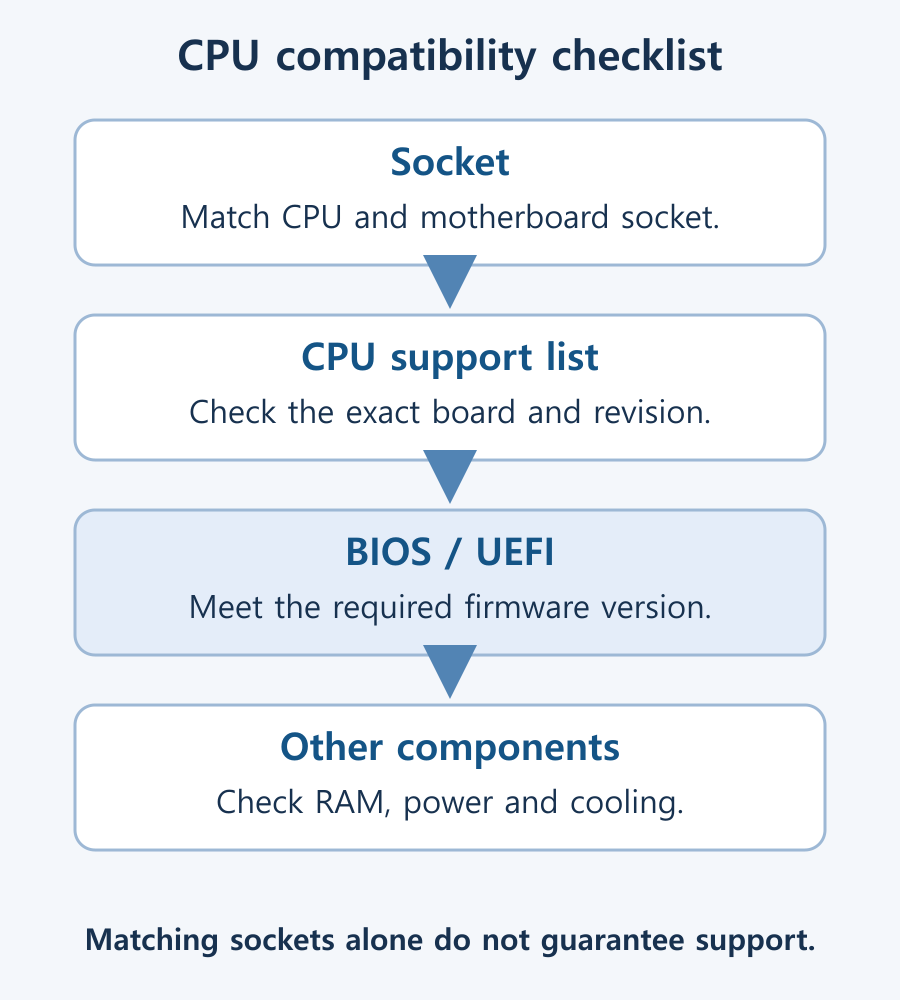
Check these conditions before purchasing. If the support list or update procedure is unclear, ask the manufacturer or seller about the precise combination. A new socket does not guarantee support for every processor that might be released in the future.
Compatibility examples to interpret carefully
| Example | Officially documented scope | Important condition |
|---|---|---|
| Intel LGA1700 | 12th-, 13th-, and 14th-generation desktop Core with Intel 600/700-series chipsets | A board may need BIOS or related firmware updates between generations. |
| Intel LGA1851 | Core Ultra desktop Series 2 with Intel 800-series chipsets | LGA1700 processors and boards are not interchangeable. |
| AMD AM5 | Applicable AM5 Ryzen 7000, 8000, and 9000 processors with supported boards | Some 600-series boards need a BIOS update for newer CPUs. |
These are examples, not an exhaustive list of processors or sockets. Consult Intel’s LGA1700 compatibility guidance, its LGA1851 and LGA1700 incompatibility explanation, and AMD’s AM5 chipset guidance for their scope. Use the individual motherboard’s CPU support list for the final decision.
Similar cooler mounting holes, or the ability to reuse a cooler, do not mean that CPUs are interchangeable. Processor support, mechanical cooler fit, and adequate thermal performance are separate requirements.
How to check a motherboard’s CPU support list
- Identify the motherboard’s full model name and revision using its printed markings, packaging, or the manufacturer’s management tool.
- Open the official product support page and find CPU Support or CPU / Memory Support.
- Find the complete CPU model and record the BIOS version from which it is supported.
- Compare it with the installed BIOS. In Windows, open Win + R → msinfo32 and look for BIOS Version/Date.
- If necessary, update the firmware using the manufacturer’s procedure before changing the CPU. Restart and confirm the new version, then proceed with the processor replacement.
For example, ASUS’s CPU and memory support-list guide shows how to find a CPU under CPU / Memory Support → CPU Support for the exact board model. Check the firmware conditions as well; menus and table labels differ between manufacturers and products.
If the new CPU is already installed and the PC cannot start, you may need an older supported CPU to perform the update. CPU-free firmware updates are available only on boards that support them, using their specific procedure. Follow the model’s official instructions, such as ASUS’s troubleshooting guidance for a new CPU that will not boot. Do not use another board model’s BIOS file or interrupt power during an update.
What else to check before replacing a CPU
- Shut down, disconnect the power cable, and follow the manufacturer’s disassembly and electrostatic-discharge precautions.
- Align the CPU and socket markings. Avoid touching contacts or applying abnormal force.
- Check the cooler mounting kit, height, case clearance, and whether fresh thermal compound is needed.
- Check memory type and power connections. After installation, confirm CPU and memory detection in firmware.
- If the upgraded PC has no display, also check integrated graphics availability and monitor connections.
The goal is more than confirming that a processor physically fits. A usable combination has the exact CPU on the support list, the required firmware installed, and compatible surrounding components ready.
M.2 SSD Overheating: Symptoms, Temperature Checks, and Cooling
Learn how to distinguish possible thermal throttling from other SSD slowdowns, check temperatures with CrystalDiskInfo or manufacturer tools, and improve cooling using model-specific guidance.

Home Printer Buying Guide / Printing Technologies, Running Costs, and Essential Features
Choose a home printer by matching its printing technology, maintenance needs, and total running costs to your usage. Compare inkjet, ink tank, and laser options, along with two-sided printing, scanning, wireless connections, and installation requirements.
What Are CPU Cores? Core Counts and Performance Explained
Understand physical CPU cores, logical processors, hybrid core layouts, and the limits of core-count comparisons. Learn how to check your PC and judge processors for your workload.

What Are CPU Threads? Cores, Logical Processors, and Software Threads
Learn the difference between hardware threads, software threads, logical processors, and physical cores. Understand SMT resource sharing and check the counts reported by Windows.
What Is Integrated Graphics? Differences from a Graphics Card and How to Choose
Compare integrated graphics with a separate graphics card, including shared RAM and upgrade options. Check CPU graphics support, workload requirements, and common causes of missing display output.

Laser Printers / Features, Advantages, and Disadvantages
Understand how laser printers work, what toner and drums do, and where the technology's strengths and limitations matter. Compare document printing, consumable costs, paper compatibility, and inkjet alternatives to decide whether a laser printer suits your needs.
What Is a CPU Socket? Types and Motherboard Compatibility Checks
Understand CPU sockets and LGA, PGA, and BGA connections. Follow a practical checklist for motherboard CPU support, BIOS versions, memory, power, and cooler compatibility.