M.2 SSD Overheating: Symptoms, Temperature Checks, and Cooling
An overheating M.2 solid-state drive (SSD) can reduce its transfer speed to control heat, making file copies and storage-heavy applications feel slower. Check the exact drive model, its reported temperature and manufacturer specifications, and whether the slowdown occurs at the same time as the temperature rise.
Why an M.2 SSD gets hot
M.2 describes a physical form factor, while Non-Volatile Memory Express (NVMe) is a storage protocol commonly used over PCI Express (PCIe). An M.2 drive may use Serial ATA (SATA) or PCIe/NVMe, so the connector shape alone does not tell you its performance or cooling requirements.
The controller and NAND flash memory occupy a small circuit board with limited space to dissipate heat. Sustained data transfers can increase power consumption and temperature. The surrounding environment matters too: a drive under a graphics card, obstructed case ventilation, or a laptop with restricted intake can make cooling more difficult.
Examples of workloads worth observing include large file transfers, video editing, software installation, updates, and repeated benchmarks. The workload and cooling design determine the result; a game or application does not necessarily cause overheating simply because it runs for a long time.
Symptoms that can indicate overheating
Transfer speed drops during sustained work
A copy may start quickly and slow down after the SSD has been working for a while. Thermal throttling is a protective response that reduces performance to control temperature. Kingston describes this behavior during heavy workloads in its KC2000 technical support guidance.
A falling transfer rate alone does not prove overheating. Cache behavior, another busy drive, a slow source device, and background work can also affect a copy. Look for temperature and performance changes together, and compare the same task after the drive has cooled.
Storage-heavy applications become less responsive
Loading a game, accessing video-editing cache files, or running a virtual machine can feel slower if the drive is limiting performance. Check whether the delays coincide with high SSD temperature rather than assuming that every stutter is a storage problem. Processor, memory, graphics, and application behavior are other possible causes.
The drive stops responding or errors appear
A stalled copy, a missing drive, a restart, or a blue screen needs broader investigation. Temperature may be relevant, but power, firmware, drivers, connections, and a failing drive can produce similar symptoms. Back up important accessible files and inspect drive-health information; repeatedly stressing an unstable drive is not a useful first diagnostic step.
What is a safe M.2 SSD temperature?
There is no single safe or dangerous temperature that applies to every M.2 SSD and every sensor. Check the exact model’s operating-temperature specification and any thermal warnings provided by its firmware or management software. A room-temperature or storage-temperature rating is not automatically the limit for the drive’s reported operating temperature.
For example, Samsung specifies an operating range of 0–70°C, measured by Self-Monitoring, Analysis and Reporting Technology (S.M.A.R.T.) temperature, for the model covered by its 990 PRO with Heatsink data sheet, with proper airflow recommended. This is a model-specific specification, not a universal throttling threshold for all NVMe drives.
| What you observe | How to interpret it |
|---|---|
| Temperature rises during a transfer and falls afterward | Compare it with the model’s specification and check performance before concluding that it is abnormal. |
| Repeated warnings or readings beyond the specified operating range | Reduce the workload and investigate cooling, sensor interpretation, and manufacturer guidance. |
| Different temperatures in two utilities | Confirm the same drive, sensor, temperature unit, and observation time. |
| Unresponsive drive or read/write errors | Protect important data and investigate health and other possible faults as well as heat. |
Do not treat an application’s red temperature display as independent proof of hardware damage. In CrystalDiskInfo, temperature colors depend on its alert-temperature setting, as explained in the official display documentation. An alert is a reason to inspect the reading and the model’s requirements.
How to measure SSD temperature in Windows
Check the correct drive in CrystalDiskInfo
CrystalDiskInfo displays storage-device information, including reported temperature and health information. Support depends on the drive and connection; the developer notes support for only some USB, Intel RAID, and NVMe configurations. A missing temperature reading does not mean the drive is cool.
- Download CrystalDiskInfo through the developer’s official site and open the application.
- Select the intended SSD from the drive list or Disk menu. Match its model and capacity, particularly when several drives are installed.
- Read the temperature and confirm the displayed unit. Also inspect the health status and any reported warnings.
- Record the model, temperature, workload, and observation time. If sharing a screenshot, hide the drive’s serial number with Function → Hide Serial Number.
Check which physical drive contains the application or files you are investigating. Several drive letters can belong to one SSD, and the operating-system drive may differ from the drive storing a game or editing cache.
Compare with the manufacturer’s utility
Use the tool supported for your exact drive model. For compatible Samsung drives, Samsung Magician offers temperature and drive-health information alongside model-dependent management features. Do not assume that every feature is available for every Samsung-branded or OEM drive.
- Open the utility and select the correct physical drive.
- Review the temperature or drive-status area, then inspect any warnings and the installed firmware version.
- Compare readings taken at the same time. If the tools expose different sensors, keep their labels in your notes instead of treating them as interchangeable.
Temperature monitoring does not require erasing the drive or changing firmware. If a firmware update is recommended, read its instructions and back up important files before performing that separate maintenance task.
Compare idle and workload conditions
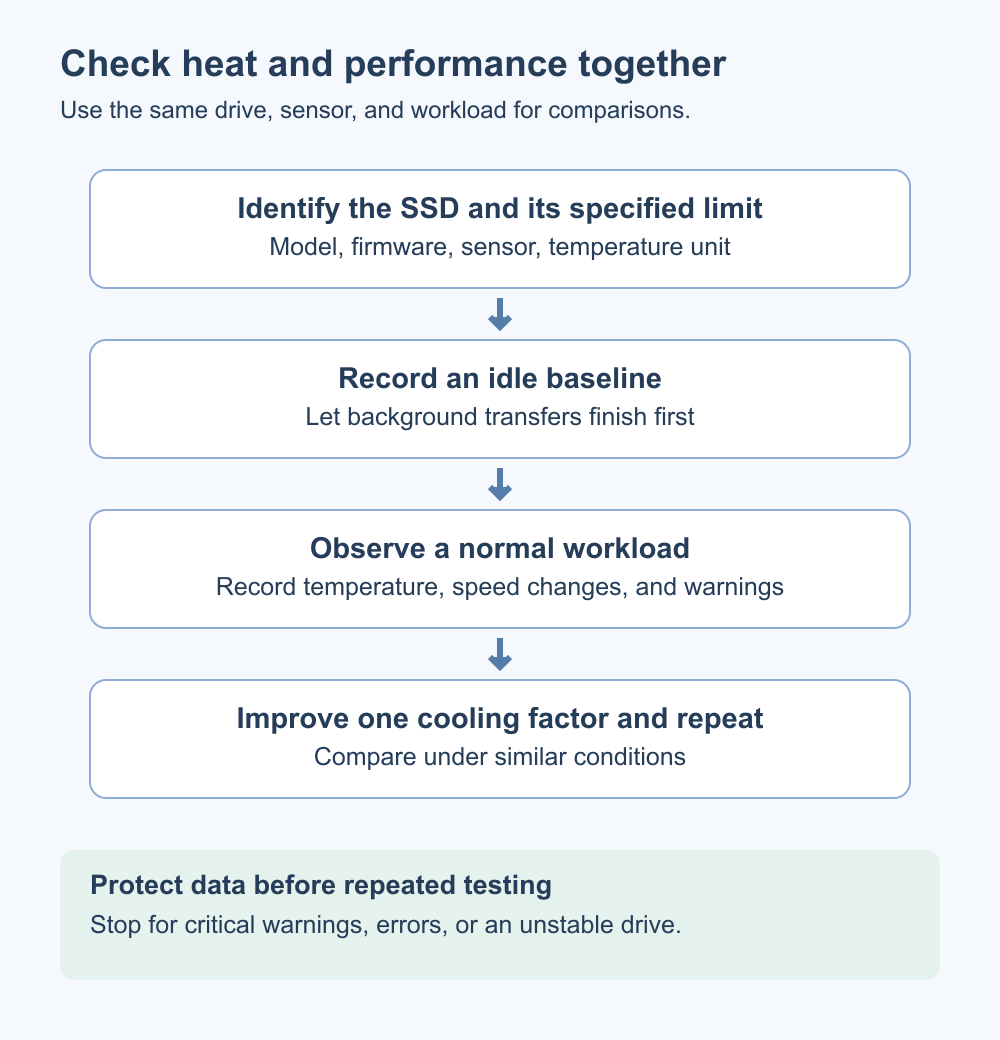
A repeatable comparison is more useful than a single screenshot. Keep a short record so you can compare conditions.
- Let the machine settle with no large transfers running, then record an idle reading.
- Run the ordinary task associated with the slowdown, using backed-up or replaceable test files.
- Observe temperature, transfer behavior, and any warnings during the task. Record a peak value if the utility provides one.
- Stop the task and observe whether temperature falls and responsiveness returns.
- After changing one cooling factor, repeat the same task under comparable conditions.
Keep the source and destination, file set, background workload, and room conditions as consistent as practical. Stop if the system becomes unstable or reports a critical warning. Do not run repeated write-heavy benchmarks just to force a higher reading.
How to reduce M.2 SSD heat
Check heatsink fit and thermal-pad contact
A suitable heatsink can help transfer heat away from an SSD. Kingston’s SSD cooling guide explains why the need depends on the drive, workload, and installation. Check the SSD and system manuals before choosing a cooler.
Shut down and disconnect power before inspecting hardware, following the system’s service instructions. Use the specified pad thickness and mounting method, remove a pad’s protective liner when instructed, and check clearance and contact. Do not stack a motherboard heatsink over an incompatible factory-fitted cooler or remove the drive’s product label without manufacturer guidance.
Improve case airflow
Check for obstructed vents, clogged filters, and nonworking fans. Keep the intended intake and exhaust paths clear. A heatsink still needs a way to release heat into the surrounding air, so a large cooler is not a substitute for an appropriate airflow path.
Review the M.2 slot location
A different slot may provide more favorable spacing or airflow, but review the motherboard manual first. Slots can differ in supported interface, lane allocation, sharing with other connectors, and boot behavior. Record the existing configuration and preserve a recovery plan before moving the drive; a cooler location is not useful if it creates a compatibility problem.
Keep laptop ventilation clear
Use a laptop on a firm surface that does not block its air intakes. A stand or cooling pad may help in some designs, but test the effect with the same workload. Do not force a thick desktop M.2 heatsink into a laptop with insufficient clearance. For internal cleaning or cooling changes, follow the manufacturer’s service instructions or use its service provider.
What to do if high temperatures continue
Review the drive model and specification, the selected sensor, airflow, heatsink contact, and the conditions that trigger the warning. If temperature readings appear implausible, compare a supported manufacturer tool and check its guidance rather than immediately assuming a damaged SSD.
If the SSD keeps disconnecting, reports health warnings, or cannot reliably read and write files, prioritize a verified backup of accessible data and contact the drive or system manufacturer with the model, firmware version, readings, and symptoms. Persistent errors need diagnosis even if an improvement in cooling lowers the temperature.

What Are CPU Threads? Cores, Logical Processors, and Software Threads
Learn the difference between hardware threads, software threads, logical processors, and physical cores. Understand SMT resource sharing and check the counts reported by Windows.

What Is Integrated Graphics? Differences from a Graphics Card and How to Choose
Compare integrated graphics with a separate graphics card, including shared RAM and upgrade options. Check CPU graphics support, workload requirements, and common causes of missing display output.
M.2 SSD Overheating: Symptoms, Temperature Checks, and Cooling
Learn how to distinguish possible thermal throttling from other SSD slowdowns, check temperatures with CrystalDiskInfo or manufacturer tools, and improve cooling using model-specific guidance.
What Is a CPU Socket? Types and Motherboard Compatibility Checks
Understand CPU sockets and LGA, PGA, and BGA connections. Follow a practical checklist for motherboard CPU support, BIOS versions, memory, power, and cooler compatibility.

Home Printer Buying Guide / Printing Technologies, Running Costs, and Essential Features
Choose a home printer by matching its printing technology, maintenance needs, and total running costs to your usage. Compare inkjet, ink tank, and laser options, along with two-sided printing, scanning, wireless connections, and installation requirements.

What Are CPU Cores? Core Counts and Performance Explained
Understand physical CPU cores, logical processors, hybrid core layouts, and the limits of core-count comparisons. Learn how to check your PC and judge processors for your workload.

Laser Printers / Features, Advantages, and Disadvantages
Understand how laser printers work, what toner and drums do, and where the technology's strengths and limitations matter. Compare document printing, consumable costs, paper compatibility, and inkjet alternatives to decide whether a laser printer suits your needs.