What Is CPU Clock Speed? Base Frequency, Boost Clock, and Performance
CPU clock speed is the number of operating cycles a processor completes per second, usually expressed in gigahertz (GHz). A higher frequency provides more cycles in the same time, but differences in work per cycle, core design, and other factors mean GHz alone cannot rank different CPUs.
What does GHz measure?
One gigahertz means one billion cycles per second. A processor running at 4GHz has four billion cycles per second, but this does not mean it executes exactly four billion instructions. An instruction can take several cycles, and a CPU can overlap the processing of multiple instructions.
Instructions per clock (IPC) describes instruction throughput per cycle. It is not a fixed score that applies equally to every program: the instruction mix and workload affect it. That is why CPUs with different designs can produce different results at the same frequency. Intel’s clock speed guide also explains why frequency alone is insufficient when comparing different architectures.
Base frequency versus maximum boost frequency
| Specification | How to read it | What it does not mean |
|---|---|---|
| Base frequency | A reference frequency associated with the manufacturer’s specified power and operating conditions | A minimum speed that must always be maintained, including at idle |
| Maximum boost or turbo frequency | The highest frequency attainable under suitable conditions | A speed that every core sustains simultaneously for long periods |
| Current frequency | The operating frequency observed at a particular moment | A complete record of every core’s maximum or sustained behavior |
A short burst of activity while editing a document and a long render using all cores impose different conditions. A higher advertised maximum boost does not imply the same advantage during sustained all-core work. On a hybrid CPU, distinguish the base and maximum frequencies of performance cores and efficiency cores as well.
Why clock speed keeps changing
Modern processors adjust frequency according to demand and available temperature, power, and current headroom. A lower speed during light use can be normal power management; a rise under load can be automatic boosting. AMD’s Precision Boost 2 explanation lists workload type, active core count, temperature, power, and current among its operating constraints.
On laptops, the power adapter, battery operation, manufacturer performance mode, and cooling design can substantially affect sustained performance. Desktop behavior also depends on motherboard power settings and cooling. Understanding TDP and power limits helps distinguish these conditions.
| Workload | How to interpret frequency | Record alongside it |
|---|---|---|
| Idle | Power saving and inactive cores can lower the reading. A low idle value alone is not a fault. | Background activity and power mode |
| One software thread | Boost on selected cores matters. An aggregate speed display is not every core’s maximum. | Exact task, duration, and temperature |
| Sustained all-core load | Power, temperature, and current headroom affect sustained speed. Maximum boost is not an all-core guarantee. | Temperature, power, and completion time over the same interval |
Keep power mode and cooling consistent while changing the workload. This table describes operating conditions rather than measured frequencies for a particular processor.
Does a higher clock mean proportionally better performance?
For the same CPU, with other conditions unchanged, a higher clock can shorten work that is limited by computation speed. It does not necessarily shorten time spent waiting for RAM or the GPU by the same proportion. A 10% frequency increase therefore does not guarantee that an entire application runs 10% faster.
When comparing processors, consider core configuration, cache design, memory, and power conditions too. Results from the programs you actually use are more direct buying evidence than clock speed alone; use comparable CPU benchmarks to check them.
How to check clock speed on your PC
- In Windows, press Ctrl+Shift+Esc to open Task Manager. Open the detailed view or the Performance section if necessary.
- Select Performance → CPU and note the processor model, base speed, and current speed. Record the full model name. If its product family or suffix is unclear, consult the guide to CPU model names.
- Look up that exact model on the manufacturer’s specification page and distinguish base frequency from maximum boost. Task Manager’s single speed reading is not a per-core maximum-frequency report.
- Run your normal workload and observe completion time, temperature, and limit indicators together. Prefer repeatable results under the same conditions to a brief peak frequency.
A difference between Task Manager’s base speed and the product page’s maximum boost usually means you are comparing different specifications. A low reading at idle is also different from unexpectedly poor performance under load.
What to check when speed seems too low
- First establish whether the actual task has become slower. A low clock during power-saving operation is not enough to diagnose a fault.
- Check the laptop power adapter and battery state, Windows power mode, and the manufacturer’s performance profile.
- Observe CPU temperature and fan operation, and look for thermal or power limits during sustained work.
- Check the settings and drivers recommended by the motherboard or PC manufacturer. If a problem followed a setting change, restore that changed setting first.
BIOS base clock, or BCLK, is a reference signal and is different from the processor base frequency in a specification sheet. You do not need to raise BCLK or voltage merely to check boost behavior. Judge normal operation against the model’s conditions and its sustained workload performance.

Monitor / Color Depth Explained: 8-Bit, 10-Bit, and FRC
Compare the RGB levels in 8-bit and 10-bit signals and understand FRC. Learn how input, panel, and LUT precision differ and how to check a 10-bit output path.
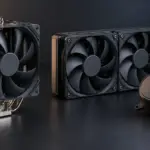
How to Choose a CPU Cooler: Air Cooling, AIO Liquid Cooling, and Fit
Compare tower air coolers and all-in-one liquid coolers by workload, noise, and installation requirements. Check socket kits, RAM clearance, case height, and radiator space before buying.
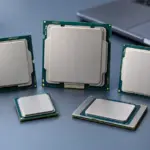
How to Read CPU Model Names: Families, Generations, and Suffixes
Break Intel Core, Core Ultra, and AMD Ryzen names into families, tiers, model numbers, and suffixes. Verify performance, graphics, and platform compatibility using the exact model’s specifications.

What Is a CPU or GPU Bottleneck? Finding What Limits Gaming Performance
Diagnose whether CPU work, GPU rendering, or another limit is holding back a game. Compare resolution, frame caps, utilization, and frame times before deciding which component to upgrade.
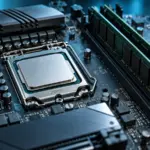
How to Read CPU Memory Specifications: DDR Type, Channels, Capacity, and Speed
Read a CPU’s RAM type, maximum capacity, channel count, and configuration-dependent transfer rates. Check DIMMs, ranks, XMP or EXPO profiles, motherboard QVLs, and BIOS support before upgrading.

Laser Printers / Features, Advantages, and Disadvantages
Understand how laser printers work, what toner and drums do, and where the technology's strengths and limitations matter. Compare document printing, consumable costs, paper compatibility, and inkjet alternatives to decide whether a laser printer suits your needs.

Monitor / USB-C Video, Charging, and USB Data: What to Check
Check the separate requirements for USB-C monitor video, USB data, and laptop charging. Learn how to select ports and cables, assess bandwidth, and troubleshoot each function.
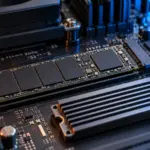
M.2 SSD Overheating: Symptoms, Temperature Checks, and Cooling
Learn how to distinguish possible thermal throttling from other SSD slowdowns, check temperatures with CrystalDiskInfo or manufacturer tools, and improve cooling using model-specific guidance.

Monitor / Buying a Monitor Arm: VESA, Weight, and Desk Checks
Check VESA fit, screw requirements, minimum and maximum load, center of gravity, and desktop construction. Follow practical steps for installation, tension adjustment, and cable clearance.

What Is CPU Clock Speed? Base Frequency, Boost Clock, and Performance
Learn what GHz measures, how base and maximum boost frequencies differ, and why operating speed changes. Find out which specifications and real workloads to compare alongside clock speed.