Monitor / Color Depth Explained: 8-Bit, 10-Bit, and FRC
Color depth describes the number of bits used to represent levels of a color component. In monitor specifications, 8-bit and 10-bit usually refer to each RGB channel, with 10-bit providing more levels per channel. Color depth is different from color gamut, which describes a range of colors, and color accuracy, which describes how closely displayed colors match a target.
How many levels do 8-bit and 10-bit provide?
| Bits per RGB channel | Levels per channel | RGB combinations |
|---|---|---|
| 8-bit | 2⁸ = 256 | 256³ = 16,777,216 |
| 10-bit | 2¹⁰ = 1,024 | 1,024³ = 1,073,741,824 |
These are arithmetic counts for three RGB channels at the same bit depth. Ten-bit has four times as many levels per channel and 64 times as many RGB combinations. That does not mean people perceive 64 times as many distinct colors or that photographic detail improves by that factor.
An RGB signal with 8 bits per channel has 24 bits across its three color channels. Do not confuse this with other uses of “8-bit image,” such as an image using an indexed palette. EIZO’s guide to display colors and internal processing distinguishes input, processing, and display precision.
Why gamut and accuracy are separate
Color gamut describes the range defined by primaries and other conditions. A 10-bit display can still have a limited gamut. Read sRGB coverage (Korean) and P3 specifications (Korean) separately from bit depth. Dividing a range into finer steps is different from expanding that range.
Color accuracy concerns the difference between intended and displayed colors. Accepting a 10-bit input does not ensure accuracy if white point, tone response, or color profiles are wrong. For color-critical work, also consider measurement, calibration, and ICC profiles (Korean).
What does 8-bit + FRC mean?
Frame Rate Control (FRC) alternates nearby color or brightness states over time to represent intermediate levels. “8-bit + FRC” can describe an 8-bit panel drive combined with this processing. The input bit depth a monitor accepts and the way its panel is driven should be checked separately.
FRC does not automatically mean poor picture quality, nor should every implementation be assumed identical to native 10-bit under all conditions. Results depend on the implementation and content. If the specification is unclear, ask the manufacturer separately about panel drive and supported input signals.
Input bits, panel bits, and LUT bits
| Specification | Meaning |
|---|---|
| Input signal bit depth | Precision sent by the GPU through the connection |
| Panel drive bit depth | Direct panel levels and any FRC implementation |
| LUT/internal processing precision | Precision used for color conversion and correction calculations |
A look-up table (LUT) maps input values to output values. A 16-bit LUT does not mean the panel itself provides native 16-bit output. Reducing rounding errors during internal calculations and increasing the final display levels are related but different specifications.
How to check a 10-bit output path
- Check whether your content and application actually use the required precision. Displaying an 8-bit source through a 10-bit path does not recreate all information missing from the source.
- Check whether the GPU, driver, and monitor input support 10-bit at your chosen resolution and refresh rate.
- In Windows, open Settings → System → Display → Advanced display, select the monitor, and check the displayed bit-depth information against the GPU control panel. Available fields vary by version.
- Check whether increasing resolution, refresh rate, HDR, and color format together changes another setting because of bandwidth limits.
- Return to a known working configuration if necessary, then change one condition at a time.
An operating system reporting 10-bit output does not prove the panel operates without FRC. Check the connection alongside resolution (Korean), refresh rate (Korean), and USB-C video and data conditions.
What if a gradient shows visible bands?
Banding, where a smooth tone appears as distinct strips, can originate in the source, compression, editing, application processing, or display settings. A compressed image downloaded online or a result in one browser is not enough to determine panel bit depth. Compare the same source in other supported applications and with normal settings to narrow down the cause.
If your gradient or HDR-production work needs additional levels, check the whole signal path. For general documents, balance bit depth with text clarity, picture modes, accuracy, and budget. Bit depth is one useful condition rather than a single score for overall picture quality. For an HDR monitor comparison, also consider OLED brightness and static-content conditions and Mini LED local dimming to judge characteristics that bit depth alone does not describe.

Laser Printers / Features, Advantages, and Disadvantages
Understand how laser printers work, what toner and drums do, and where the technology's strengths and limitations matter. Compare document printing, consumable costs, paper compatibility, and inkjet alternatives to decide whether a laser printer suits your needs.
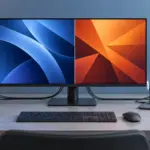
Monitor / KVM, PBP, and PIP: Differences and Two-Computer Setup
Distinguish KVM input and USB switching from PBP and PIP picture modes. Set up two computers with the correct video, upstream mapping, and peripheral checks.
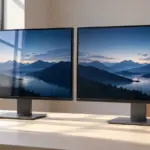
Monitor / Glossy vs. Matte Screens: Differences and How to Choose
Compare glossy and matte monitor reflections, surface texture, and readability. Choose using your room lighting and content, and check the conditions for films and cleaning.
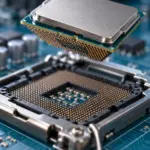
What Is a CPU Socket? Types and Motherboard Compatibility Checks
Understand CPU sockets and LGA, PGA, and BGA connections. Follow a practical checklist for motherboard CPU support, BIOS versions, memory, power, and cooler compatibility.
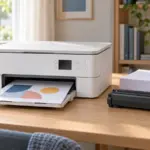
Home Printer Buying Guide / Printing Technologies, Running Costs, and Essential Features
Choose a home printer by matching its printing technology, maintenance needs, and total running costs to your usage. Compare inkjet, ink tank, and laser options, along with two-sided printing, scanning, wireless connections, and installation requirements.
What Are CPU Cores? Core Counts and Performance Explained
Understand physical CPU cores, logical processors, hybrid core layouts, and the limits of core-count comparisons. Learn how to check your PC and judge processors for your workload.
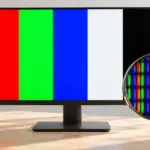
Monitor / How to Check a New Monitor for Pixel Defects and Uniformity
Inspect a new monitor using solid colors, uniformity patterns, and your real workload. Distinguish pixel defects, content artifacts, reflections, and backlight effects, and prepare support records.
Monitor / What Is Mini LED? Local Dimming and Blooming Explained
Learn how Mini LED backlights and local dimming work in LCD monitors. Compare blooming, shadow detail, brightness changes, and operating modes using practical checks.
M.2 SSD Overheating: Symptoms, Temperature Checks, and Cooling
Learn how to distinguish possible thermal throttling from other SSD slowdowns, check temperatures with CrystalDiskInfo or manufacturer tools, and improve cooling using model-specific guidance.
What Is Integrated Graphics? Differences from a Graphics Card and How to Choose
Compare integrated graphics with a separate graphics card, including shared RAM and upgrade options. Check CPU graphics support, workload requirements, and common causes of missing display output.