Monitor / What Is Mini LED? Local Dimming and Blooming Explained
A typical Mini LED monitor is an LCD monitor that uses small LEDs for its backlight. Local dimming controls backlight zones to display bright highlights and dark areas together, but blooming around bright objects and visible brightness changes can still occur. LED count or dimming-zone count alone does not determine overall picture quality.
Mini LED describes the backlight, not an alternative to IPS or VA
An LCD regulates light from a backlight with liquid crystals. A monitor can therefore be described as IPS Mini LED or VA Mini LED: one term refers to the LCD operating mode and the other to the backlight. As the panel and backlight comparison (Korean) explains, IPS and Mini LED are not mutually exclusive choices in the same category.
Mini LED also differs from OLED and MicroLED displays, in which the image-forming pixels emit light. A Mini LED label does not mean every screen pixel emits light independently. This guide discusses Mini LED used as an LCD backlight in PC monitors.
What local dimming does
Local dimming divides the backlight into zones whose brightness can be controlled separately. Zones behind dark areas can be dimmed while those behind bright objects are raised, expanding the displayed luminance range within a scene. VESA’s explanation of dimming designs distinguishes this from adjusting the entire backlight together.
One LED is not necessarily one independently controlled zone. Several LEDs may be grouped into a zone, so avoid confusing LED count with dimming-zone count. Even equal zone counts can produce different results because screen size, zone layout, and control algorithms differ.
Why blooming and lost shadow detail occur
A small subtitle or star against black may occupy less than one backlight zone. Lighting that zone can also brighten the area around the object. This halo is called blooming. Viewing the screen at an angle can make it more apparent because of the LCD and optical structure.
An algorithm that dims aggressively to suppress halos may also hide small stars or shadow detail. Delayed zone changes can produce visible trails or brightness fluctuations around moving objects. Look beyond contrast-ratio figures (Korean) and check whether bright detail and dark information remain visible together.
Specifications to compare beyond zone count
| Item | What to check |
|---|---|
| Brightness | Small-area peak brightness and sustained full-screen brightness |
| Zone control | Halos around subtitles and small objects, and transition speed |
| Dark gradation | Whether shadow detail is crushed into black |
| Operating modes | Local dimming behavior and support in SDR, HDR, and VRR |
| LCD characteristics | Viewing angles, native contrast, and pixel response |
VESA’s DisplayHDR performance criteria assess brightness, black levels, dimming, and color separately. A certification or zone count does not guarantee identical results with every type of content. Also distinguish HDR support from actual HDR performance (Korean). For gradation, also distinguish 8-bit, 10-bit, and FRC. Color depth is a separate specification from the number of backlight zones.
How to compare with real content
- Use your normal viewing distance and room lighting, and record the picture mode and brightness.
- Display small white subtitles or bright objects against black and inspect the surrounding halo.
- Check whether small stars and shadow textures remain visible.
- Watch for brightness fluctuations when objects move or subtitles appear and disappear.
- Compare local dimming off and at different strengths, where available. Follow the manual for supported options and modes.
- For games, test with variable refresh rate (Korean) enabled and at the frame rates you actually use.
An overexposed camera image can make halos appear much stronger than they look to your eyes. Check lighting, exposure, and screen settings when comparing photos or videos. A visual impression is not a measured luminance or contrast value.
If a patch appears fixed rather than following a bright object, use the pixel-defect and uniformity inspection sequence to establish consistent viewing conditions first.
Consider separate settings for SDR work and HDR content
If brightness changes around windows and the cursor are distracting in SDR documents, check whether dimming can be adjusted in that mode. Disabling dimming in HDR can change the relationship between highlights and dark areas. Do not transfer a conclusion from one mode to another without checking.
When comparing Mini LED with OLED, consider blacks, brightness, static-content management, and text under the same usage conditions. Judge Mini LED by how consistently it preserves bright and dark information in the scenes you actually view.
Monitor / OLED Pros, Cons, and Ways to Reduce Burn-In Risk
Understand OLED’s strengths and the conditions that affect brightness, text, and static-content use. Learn which protection features and warranty terms to check to reduce burn-in risk.
Monitor / USB-C Video, Charging, and USB Data: What to Check
Check the separate requirements for USB-C monitor video, USB data, and laptop charging. Learn how to select ports and cables, assess bandwidth, and troubleshoot each function.
M.2 SSD Overheating: Symptoms, Temperature Checks, and Cooling
Learn how to distinguish possible thermal throttling from other SSD slowdowns, check temperatures with CrystalDiskInfo or manufacturer tools, and improve cooling using model-specific guidance.

Monitor / Buying a Monitor Arm: VESA, Weight, and Desk Checks
Check VESA fit, screw requirements, minimum and maximum load, center of gravity, and desktop construction. Follow practical steps for installation, tension adjustment, and cable clearance.
Monitor / Glossy vs. Matte Screens: Differences and How to Choose
Compare glossy and matte monitor reflections, surface texture, and readability. Choose using your room lighting and content, and check the conditions for films and cleaning.
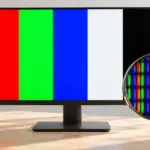
Monitor / How to Check a New Monitor for Pixel Defects and Uniformity
Inspect a new monitor using solid colors, uniformity patterns, and your real workload. Distinguish pixel defects, content artifacts, reflections, and backlight effects, and prepare support records.

What Are CPU Cores? Core Counts and Performance Explained
Understand physical CPU cores, logical processors, hybrid core layouts, and the limits of core-count comparisons. Learn how to check your PC and judge processors for your workload.
What Is Integrated Graphics? Differences from a Graphics Card and How to Choose
Compare integrated graphics with a separate graphics card, including shared RAM and upgrade options. Check CPU graphics support, workload requirements, and common causes of missing display output.

What Are CPU Threads? Cores, Logical Processors, and Software Threads
Learn the difference between hardware threads, software threads, logical processors, and physical cores. Understand SMT resource sharing and check the counts reported by Windows.
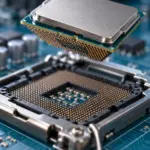
What Is a CPU Socket? Types and Motherboard Compatibility Checks
Understand CPU sockets and LGA, PGA, and BGA connections. Follow a practical checklist for motherboard CPU support, BIOS versions, memory, power, and cooler compatibility.