Monitor / OLED Pros, Cons, and Ways to Reduce Burn-In Risk
OLED (Organic Light-Emitting Diode) is a display technology in which the pixels produce their own light. Deep blacks and fast pixel transitions are strengths, but static content, brightness control, and text rendering also matter when choosing an OLED monitor for a PC. Screen-protection features can reduce burn-in risk; they do not guarantee that permanent marks will never occur.
How OLED differs from LCD
An LCD controls light from a backlight using liquid crystals, whereas an OLED controls its light-emitting pixels individually. Reducing emission in black areas helps when bright objects appear against a dark background. EIZO’s explanation of LCD and OLED structures illustrates this difference.
OLED is not another liquid-crystal operating mode alongside IPS, VA, and TN. Its structure differs more fundamentally from those LCD types; the panel-type comparison (Korean) explains that distinction. In ordinary PC monitors, Mini LED describes an LCD backlight, whose lighting units differ from OLED pixels.
Strong blacks and motion still have conditions
Fast pixel transitions can reduce traces of a previous pixel state around moving objects. However, motion can still look blurred because of how a display holds each frame, its refresh rate, and the supplied frame rate. Response time and input lag (Korean) and refresh rate (Korean) are separate specifications to consider.
Deep blacks do not look identical in every room. Surface reflections and ambient light can make dark areas appear brighter. View dark content and small bright objects under your actual room lighting, and distinguish HDR input support from actual display performance (Korean) when comparing HDR monitors.
Check brightness stability and text for PC use
| Item | What to look at |
|---|---|
| Brightness control | Changes when switching between a small white window and a full white screen |
| Text rendering | Edges of small text and icons at your usual scaling and viewing distance |
| Static content | Taskbars and editing tools that stay in the same place |
| Protection features | Standby, compensation cycles, and dimming interruptions during work |
Some monitors limit brightness according to the size of the bright area or how long content remains displayed. Do not assume this is the same as automatic brightness driven by an ambient-light sensor. A peak-brightness figure for a small area may not describe the experience of working with a bright document for a long time.
Subpixel layout and the operating system’s text rendering can affect the appearance of small character edges. Two monitors with the same resolution need not render text identically. Check your actual applications, scaling, and viewing distance rather than relying only on the resolution specification.
Temporary image retention and burn-in are different
A lingering image may be temporary retention or a persistent mark associated with uneven aging. A single observation or ordinary photograph cannot reliably identify its cause. If it remains after the maintenance steps specified for the product, ask the manufacturer to assess it.
Burn-in risk depends on content, brightness, time, and product design. There is no universal number of hours after which every OLED will develop burn-in, and newer models should not be assumed immune. Check the exact model’s instructions and the warranty applicable in your sales region.
Practical habits that reduce risk
- Open the monitor’s on-screen display (OSD) and compare its OLED Care or screen-protection settings with the manual. Check supported functions such as screen movement and logo dimming.
- Set the operating system to turn the screen off when it is not in use. Check the display timeout as well as any screensaver, particularly if the screensaver itself shows a static image.
- Avoid leaving unnecessarily bright, fixed content on screen for extended periods. Consider reducing the display time of taskbars and fixed tool windows.
- Follow prompts for automatic compensation or pixel cleaning. If the monitor performs maintenance in standby, check the required power conditions.
- Follow the manufacturer’s automatic schedule and conditions for manual maintenance rather than repeatedly forcing cleaning cycles at arbitrary short intervals.
ASUS’s OLED protection guide and the Pixel Cleaning section of an OLED monitor manual provide examples of these features and power requirements. Names, durations, and schedules vary by model. Physical screen cleaning and an internal compensation cycle are different tasks.
Match the monitor and warranty to your workload
Your priorities differ depending on whether you mainly watch dark movies and play games or spend long periods with bright documents and fixed toolbars. For document work, examine text, sustained brightness, and interruptions from protection features. For HDR gaming, compare bright and dark scenes together.
Read the warranty for burn-in coverage, duration, exclusions, and required usage practices. Keep the sales documents for the exact model and region instead of applying a brand-wide assumption. The new-monitor inspection guide explains how to check initial marks and uniformity.
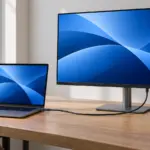
Monitor / USB-C Video, Charging, and USB Data: What to Check
Check the separate requirements for USB-C monitor video, USB data, and laptop charging. Learn how to select ports and cables, assess bandwidth, and troubleshoot each function.
Home Printer Buying Guide / Printing Technologies, Running Costs, and Essential Features
Choose a home printer by matching its printing technology, maintenance needs, and total running costs to your usage. Compare inkjet, ink tank, and laser options, along with two-sided printing, scanning, wireless connections, and installation requirements.
Monitor / Color Depth Explained: 8-Bit, 10-Bit, and FRC
Compare the RGB levels in 8-bit and 10-bit signals and understand FRC. Learn how input, panel, and LUT precision differ and how to check a 10-bit output path.
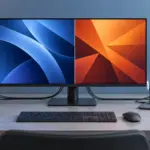
Monitor / KVM, PBP, and PIP: Differences and Two-Computer Setup
Distinguish KVM input and USB switching from PBP and PIP picture modes. Set up two computers with the correct video, upstream mapping, and peripheral checks.
Monitor / What Is Mini LED? Local Dimming and Blooming Explained
Learn how Mini LED backlights and local dimming work in LCD monitors. Compare blooming, shadow detail, brightness changes, and operating modes using practical checks.
What Is a CPU Socket? Types and Motherboard Compatibility Checks
Understand CPU sockets and LGA, PGA, and BGA connections. Follow a practical checklist for motherboard CPU support, BIOS versions, memory, power, and cooler compatibility.
Monitor / OLED Pros, Cons, and Ways to Reduce Burn-In Risk
Understand OLED’s strengths and the conditions that affect brightness, text, and static-content use. Learn which protection features and warranty terms to check to reduce burn-in risk.
What Are CPU Cores? Core Counts and Performance Explained
Understand physical CPU cores, logical processors, hybrid core layouts, and the limits of core-count comparisons. Learn how to check your PC and judge processors for your workload.

Laser Printers / Features, Advantages, and Disadvantages
Understand how laser printers work, what toner and drums do, and where the technology's strengths and limitations matter. Compare document printing, consumable costs, paper compatibility, and inkjet alternatives to decide whether a laser printer suits your needs.

Monitor / Buying a Monitor Arm: VESA, Weight, and Desk Checks
Check VESA fit, screw requirements, minimum and maximum load, center of gravity, and desktop construction. Follow practical steps for installation, tension adjustment, and cable clearance.