How to Choose a CPU Cooler: Air Cooling, AIO Liquid Cooling, and Fit
Choose a CPU cooler by considering sustained CPU workload, your noise target, and compatibility with the socket, case, and memory. Air or liquid cooling alone does not determine performance: the specific cooler, fan speeds, size, and installation environment matter.
How air and all-in-one liquid coolers work
An air cooler transfers CPU heat through its base and often heatpipes to a heatsink, then releases it to moving air. An all-in-one (AIO) liquid cooler uses a pump to circulate coolant and release heat through a radiator. Both ultimately transfer heat to surrounding air, so case intake and exhaust remain important.
| Consideration | Tower air cooler | AIO liquid cooler |
|---|---|---|
| Space | Check height above the CPU and clearance around RAM and other parts | Check radiator length, radiator-plus-fan thickness, and tube routing |
| Noise | Primarily fans and airflow | Fan noise plus pump operating noise |
| Components | Heatsink, heatpipes, base, and fans | Pump, coolant, tubes, radiator, and fans |
| Maintenance | Check dust access and fan replacement options | Check sealed-unit service, warranty, and pump-failure support |
Custom liquid-cooling loops involve different component selection, leak checks, and maintenance. Do not assume their installation and care are equivalent to a sealed AIO. The liquid-cooling comparisons here concern typical sealed AIO units.
Start with CPU power and a noise target
Document work, gaming, and long all-core renders impose different sustained demands. Review CPU TDP and power limits, but do not choose cooling from one TDP number alone. Actual workload power and the cooler maker’s CPU-specific compatibility guidance are more useful together.
Claimed cooling TDP values are not a standardized cross-vendor performance score because test conditions differ. Noctua’s rating explanation discusses these limitations and its CPU-specific classifications. When reading comparisons, look for the same CPU and power level at comparable noise levels.
Check the socket and mounting kit
- Identify the exact CPU socket used by your processor and motherboard.
- Confirm the socket and required mounting kit in the cooler’s support list. Check whether the particular package includes the kit or requires a separate purchase or request.
- Check whether the motherboard backplate must be replaced and whether the case provides rear access. An older cooler with the same name may have different bundled hardware depending on production date.
- Consult CPU and motherboard compatibility information from the cooler maker. For example, Noctua’s compatibility database distinguishes CPU, motherboard, case, and RAM checks.
Physical socket support does not automatically establish adequate cooling headroom. Check installation compatibility separately from the ability to cool the CPU at your intended power and noise level.
For air coolers, check height and RAM together
Compare the case’s CPU-cooler height allowance with the cooler’s complete installed height. A front fan may need to be raised above tall memory modules, increasing that height. Noctua’s RAM-clearance guidance explains why the fan position and case clearance must be checked together.
Also check motherboard power-delivery heatsinks, the first expansion slot, and the case side panel. If the dimensions are at the stated limit, consult drawings and combination-specific compatibility evidence. Some clearance margin is preferable when feasible.
Consider hypothetical dimensions: a case allows 165mm, and the cooler’s standard height is 158mm, leaving 7mm. If RAM clearance requires raising the fan by 10mm and increases total height to 168mm, the assembly exceeds the case limit. These are illustrative dimensions, not measurements of a product. Check the actual drawing and mounting design; Noctua’s RAM-clearance guidance also connects fan position with total cooler height.
For liquid coolers, check actual radiator space
A case supporting a nominal radiator size does not guarantee every product of that size fits. Check total radiator length and thickness, fan thickness, fittings, and tube exits. A top-mounted radiator may interfere with RAM or motherboard heatsinks, while a front-mounted unit can reduce graphics-card clearance.
Check pump power, speed monitoring, and fan connections against both the cooler and motherboard manuals. Suitable radiator placement depends in part on where that product’s pump is located; do not apply one mounting rule to every AIO design. Use the exact model’s instructions, such as ARCTIC’s installation manual.
For another hypothetical example, a 38mm radiator plus 25mm fans needs 63mm before accounting for brackets and other clearance. A 60mm mounting space is insufficient even if radiator length matches. Check screws, tube exits, and motherboard heatsinks against actual drawings. Physical fit and adequate cooling at your noise target remain separate decisions.
How to check operation after installation
- With power off, confirm protective-film removal, correct spacers and screws, thermal interface application, and mounting according to the manual. Do not unnecessarily add paste over a pre-applied interface.
- On first startup, check fan and pump signals. If temperature rises abnormally at idle or unusual noise appears, stop load testing and inspect mounting and power connections.
- Run your actual workload and observe temperature, clocks, limit indicators, and noise. Check the CPU model’s specified limits instead of applying one temperature threshold to every processor.
- If adjusting a fan curve, record its original settings and compare task performance and noise. Restore the changed setting if it causes problems.
AMD’s performance and temperature troubleshooting guidance also considers mounting and airflow alongside cooling capability. Choose a configuration that fits your system and sustains your workload rather than relying on the cooling method’s name.

Monitor / What Is Mini LED? Local Dimming and Blooming Explained
Learn how Mini LED backlights and local dimming work in LCD monitors. Compare blooming, shadow detail, brightness changes, and operating modes using practical checks.

Monitor / OLED Pros, Cons, and Ways to Reduce Burn-In Risk
Understand OLED’s strengths and the conditions that affect brightness, text, and static-content use. Learn which protection features and warranty terms to check to reduce burn-in risk.
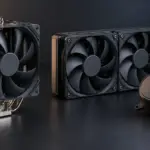
How to Choose a CPU Cooler: Air Cooling, AIO Liquid Cooling, and Fit
Compare tower air coolers and all-in-one liquid coolers by workload, noise, and installation requirements. Check socket kits, RAM clearance, case height, and radiator space before buying.
What Is a CPU Socket? Types and Motherboard Compatibility Checks
Understand CPU sockets and LGA, PGA, and BGA connections. Follow a practical checklist for motherboard CPU support, BIOS versions, memory, power, and cooler compatibility.

What Is a CPU or GPU Bottleneck? Finding What Limits Gaming Performance
Diagnose whether CPU work, GPU rendering, or another limit is holding back a game. Compare resolution, frame caps, utilization, and frame times before deciding which component to upgrade.

Laser Printers / Features, Advantages, and Disadvantages
Understand how laser printers work, what toner and drums do, and where the technology's strengths and limitations matter. Compare document printing, consumable costs, paper compatibility, and inkjet alternatives to decide whether a laser printer suits your needs.
How to Read CPU Model Names: Families, Generations, and Suffixes
Break Intel Core, Core Ultra, and AMD Ryzen names into families, tiers, model numbers, and suffixes. Verify performance, graphics, and platform compatibility using the exact model’s specifications.

What Is CPU Cache? L1, L2, L3, and Their Effect on Performance
Understand how CPU cache reduces memory waiting time, how L1, L2, and L3 differ, and how to read capacity and sharing specifications. Learn when larger caches can help real workloads.

Monitor / KVM, PBP, and PIP: Differences and Two-Computer Setup
Distinguish KVM input and USB switching from PBP and PIP picture modes. Set up two computers with the correct video, upstream mapping, and peripheral checks.

What Are CPU Cores? Core Counts and Performance Explained
Understand physical CPU cores, logical processors, hybrid core layouts, and the limits of core-count comparisons. Learn how to check your PC and judge processors for your workload.