Monitor / KVM, PBP, and PIP: Differences and Two-Computer Setup
KVM switches a keyboard, video display, and mouse between computers, while PBP and PIP show multiple video inputs on one screen. Displaying two computers at once does not automatically share keyboard and mouse control. Check multi-input picture modes and USB switching as separate capabilities when choosing a monitor.
The three features serve different purposes
| Feature | Purpose | What else to check |
|---|---|---|
| KVM | Keyboard, Video, Mouse switching between computers | Video-input to USB-upstream mapping and switching method |
| PBP | Picture-by-Picture: inputs displayed side by side | Split ratio, input combinations, and per-picture resolution |
| PIP | Picture-in-Picture: a smaller image over a main image | Sub-picture size/location and supported input combinations |
Snapping application windows in an operating system arranges one computer’s workspace. PBP normally displays separate input signals on one monitor. A monitor may provide both KVM and PBP, but support for one feature does not imply support for the others.
As shown in Dell’s monitor KVM setup guide, check video and USB upstream connections together. Automatic switching, hotkeys, companion software, and OSD options vary by model.
Each computer needs video and a USB upstream path
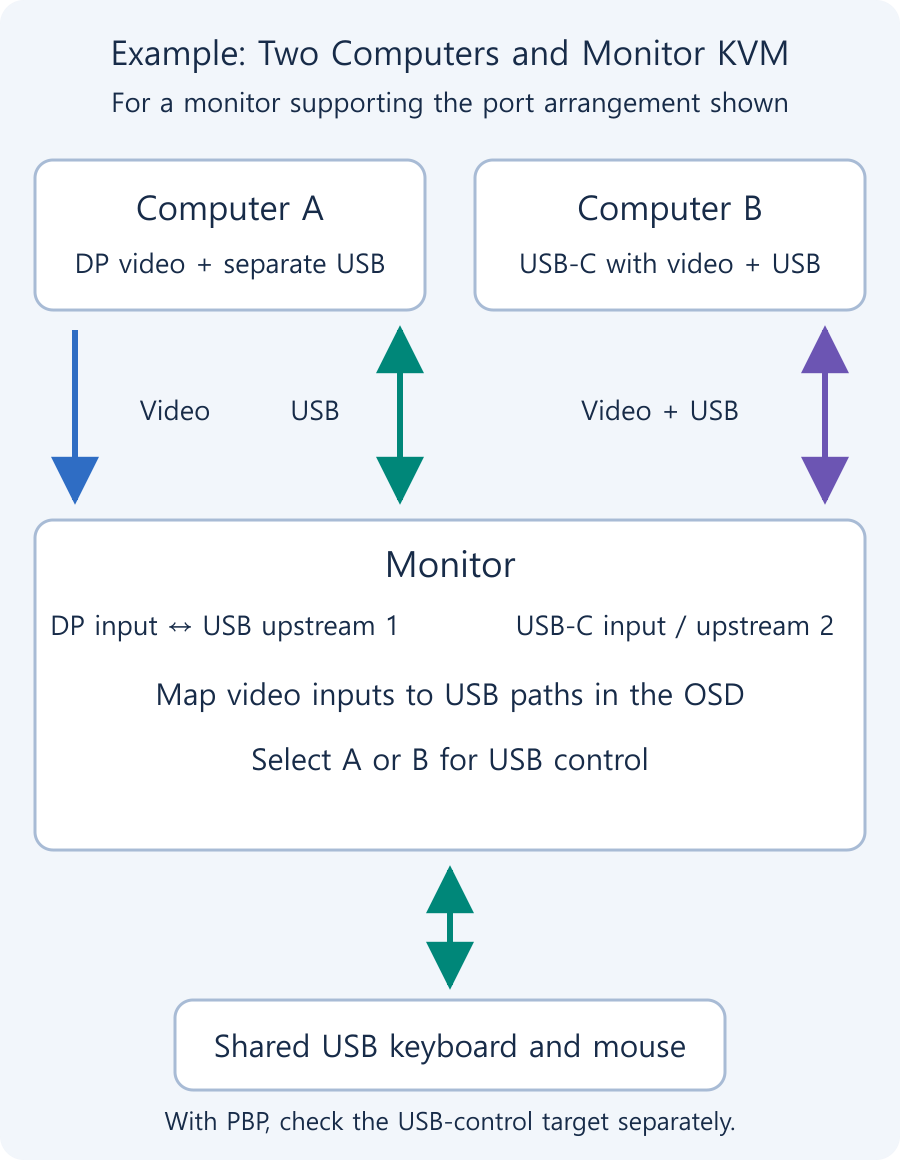
For example, computer A can send video over DisplayPort and connect separately to USB upstream 1. Computer B can use USB-C for both video and USB data. This is an example for a monitor with that port arrangement, not a universal wiring scheme.
Connect the keyboard and mouse to the monitor’s downstream ports. The monitor connects those USB devices to the selected computer’s upstream path. USB-C can combine functions in one cable, but both the ports and cable must support video and USB data.
If a computer connected through HDMI or conventional DisplayPort has a picture but cannot use the keyboard, check for a missing USB upstream connection first. A monitor’s upstream computer ports and downstream peripheral ports have different roles even if several USB ports are present.
Connect two computers and map the inputs
- Read the monitor manual for KVM support, each computer’s upstream port, and supported video inputs.
- Connect each computer’s video and USB upstream paths, then connect the keyboard and mouse to the monitor’s downstream ports.
- In the OSD USB-selection or KVM settings, associate video input A with upstream A and video input B with upstream B. Menu names vary.
- Select video input A and verify that the keyboard and mouse control A. Switch to B and repeat the check.
- If using PBP, enable both pictures and separately identify the current USB-control target and switching method.
- Check that input and USB mapping behave correctly after sleep or reconnection. If not, troubleshoot each computer’s direct connection first.
For example, the Dell U3421WE Display Manager guide describes assigning USB upstream ports to video inputs. Use the port names in your own manual rather than copying another model’s port numbers or menu layout.
PBP and PIP can change available operating modes
Resolution and refresh rates available full-screen may differ in split-picture mode. HDR, variable refresh rate, color modes, or particular input combinations can also be restricted. Check the table for the mode you will actually use. A monitor supporting Adaptive-Sync (Korean) does not necessarily support the same conditions in PBP. When reading mode specifications, distinguish input color depth from panel bit depth so that transmission conditions are not confused with the panel’s own display characteristics.
If each computer continues to send the full panel resolution, its picture may be scaled down or shown with an unsuitable aspect ratio in the split area. Choose the split-mode resolution (Korean) recommended by the monitor and check aspect ratio and text size. Inspect the signals and scaling before treating a cropped image as a panel fault.
PIP can be useful for monitoring a secondary source, but keyboard control does not necessarily follow the small picture automatically. Confirm whether the computer visible in the picture is also the computer receiving keyboard input.
Wireless devices and storage need separate checks
A keyboard or mouse paired directly with a computer over Bluetooth does not pass through the monitor’s USB path, so switching a USB KVM alone will not switch that pairing. A USB wireless receiver connected to the monitor hub may work, subject to device, hub, and KVM compatibility.
Storage connected to a switched port can be disconnected from the current computer when you switch. Do not switch during file transfers; use the operating system’s safe-removal procedure first. Test webcams and audio devices separately on both computers because they may need to be detected again.
KVM does not automatically provide file sharing or internet sharing between the computers. When mixing work and personal devices, also check the organization’s peripheral and storage-connection policies.
Monitor / Color Depth Explained: 8-Bit, 10-Bit, and FRC
Compare the RGB levels in 8-bit and 10-bit signals and understand FRC. Learn how input, panel, and LUT precision differ and how to check a 10-bit output path.
Monitor / OLED Pros, Cons, and Ways to Reduce Burn-In Risk
Understand OLED’s strengths and the conditions that affect brightness, text, and static-content use. Learn which protection features and warranty terms to check to reduce burn-in risk.
Monitor / Glossy vs. Matte Screens: Differences and How to Choose
Compare glossy and matte monitor reflections, surface texture, and readability. Choose using your room lighting and content, and check the conditions for films and cleaning.
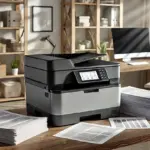
Laser Printers / Features, Advantages, and Disadvantages
Understand how laser printers work, what toner and drums do, and where the technology's strengths and limitations matter. Compare document printing, consumable costs, paper compatibility, and inkjet alternatives to decide whether a laser printer suits your needs.
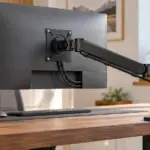
Monitor / Buying a Monitor Arm: VESA, Weight, and Desk Checks
Check VESA fit, screw requirements, minimum and maximum load, center of gravity, and desktop construction. Follow practical steps for installation, tension adjustment, and cable clearance.
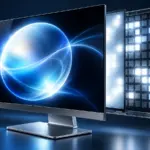
Monitor / What Is Mini LED? Local Dimming and Blooming Explained
Learn how Mini LED backlights and local dimming work in LCD monitors. Compare blooming, shadow detail, brightness changes, and operating modes using practical checks.
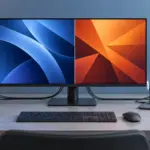
Monitor / KVM, PBP, and PIP: Differences and Two-Computer Setup
Distinguish KVM input and USB switching from PBP and PIP picture modes. Set up two computers with the correct video, upstream mapping, and peripheral checks.
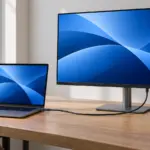
Monitor / USB-C Video, Charging, and USB Data: What to Check
Check the separate requirements for USB-C monitor video, USB data, and laptop charging. Learn how to select ports and cables, assess bandwidth, and troubleshoot each function.
M.2 SSD Overheating: Symptoms, Temperature Checks, and Cooling
Learn how to distinguish possible thermal throttling from other SSD slowdowns, check temperatures with CrystalDiskInfo or manufacturer tools, and improve cooling using model-specific guidance.
Home Printer Buying Guide / Printing Technologies, Running Costs, and Essential Features
Choose a home printer by matching its printing technology, maintenance needs, and total running costs to your usage. Compare inkjet, ink tank, and laser options, along with two-sided printing, scanning, wireless connections, and installation requirements.