How to Enable Remote Desktop on Windows 11
To allow incoming Remote Desktop connections on Windows 11, open Settings → System → Remote Desktop on the PC you want to access and turn on Remote Desktop. The PC receiving connections must run Windows 11 Pro, Enterprise, or Education. Windows 11 Home can connect to another Remote Desktop host, but it cannot act as one.
Check the requirements first
In this guide, the host is the PC you want to control remotely, and the client is the device you connect from. You enable Remote Desktop on the host, not on the client. Microsoft's Remote Desktop setup guide lists supported host editions and notes that changing the setting requires administrator privileges.
- Windows edition: On the host, open Settings → System → About and check Edition under Windows specifications. The built-in Remote Desktop host is unavailable on Windows 11 Home.
- Power and network: The host must be on, awake, and connected to the network. You cannot connect while it is asleep or hibernating.
- User account: The account you sign in with must be allowed to connect remotely. Protect it with a strong, unique password.
If the host runs Windows 11 Home, consider whether upgrading its edition or using a different remote-support tool better fits your needs. You do not need to upgrade a Home PC merely to use it as the client.
Enable Remote Desktop on Windows 11
The existing screenshots in this article show Korean Windows 11 labels. Follow the English menu names in the steps below if your PC uses an English-language interface.
- On the host PC, press Win+I to open Settings, then go to System → Remote Desktop.
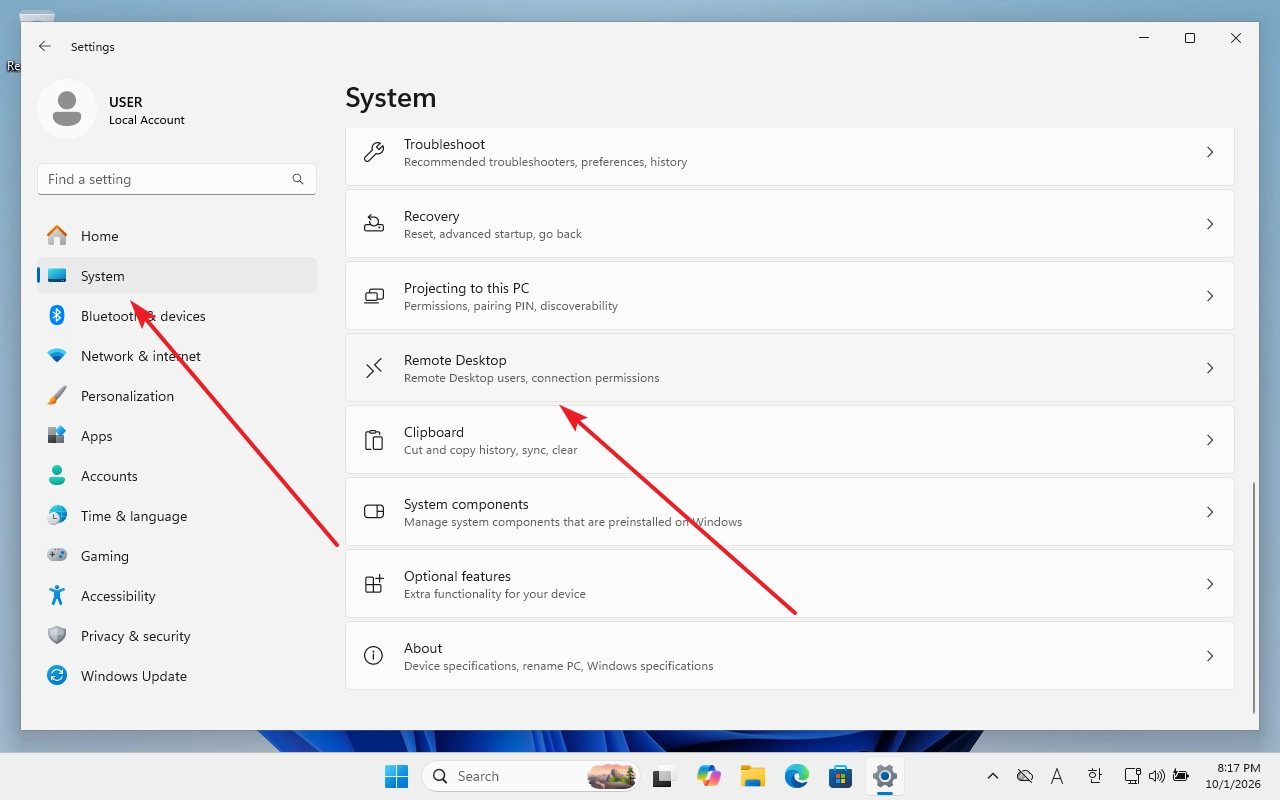
- Turn on the Remote Desktop switch.
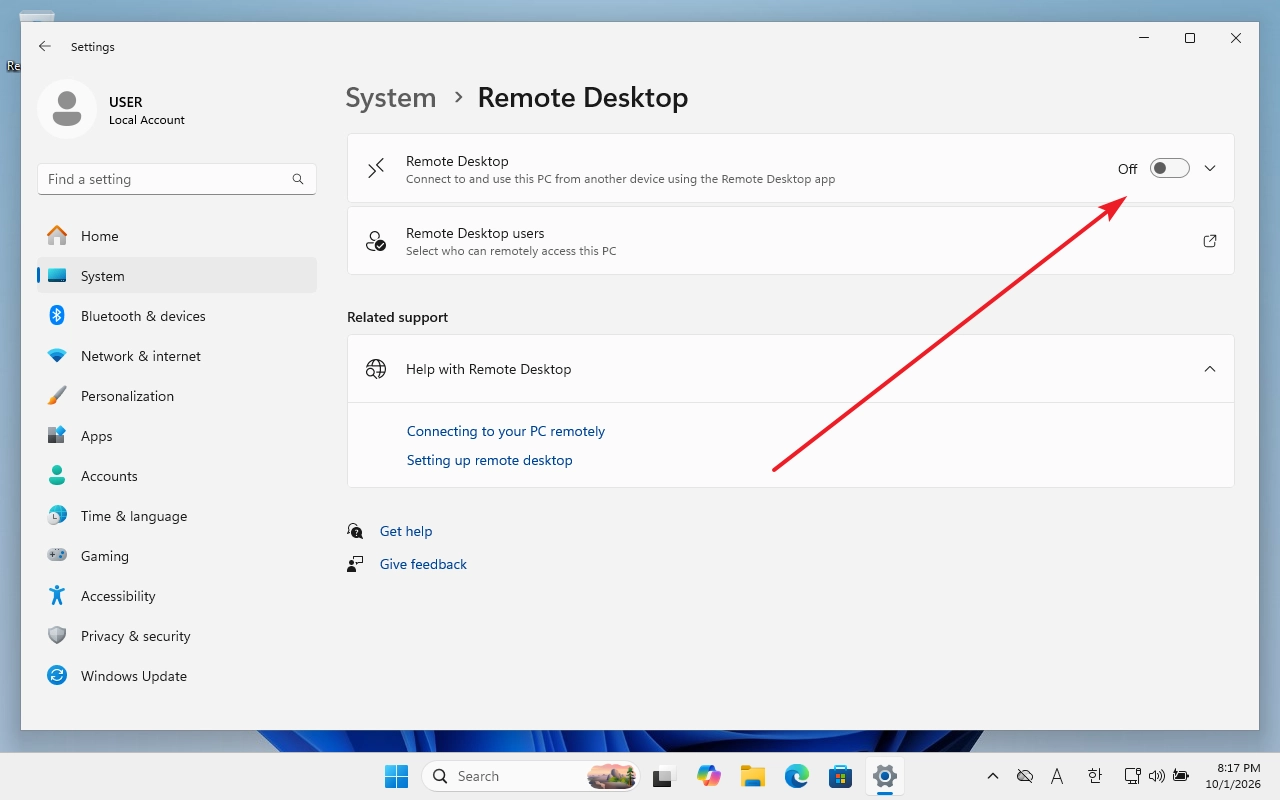
- Select Confirm when prompted. Once Remote Desktop is enabled, note the PC name shown on the same settings page. You will enter that name, or the host's IP address, on the client.
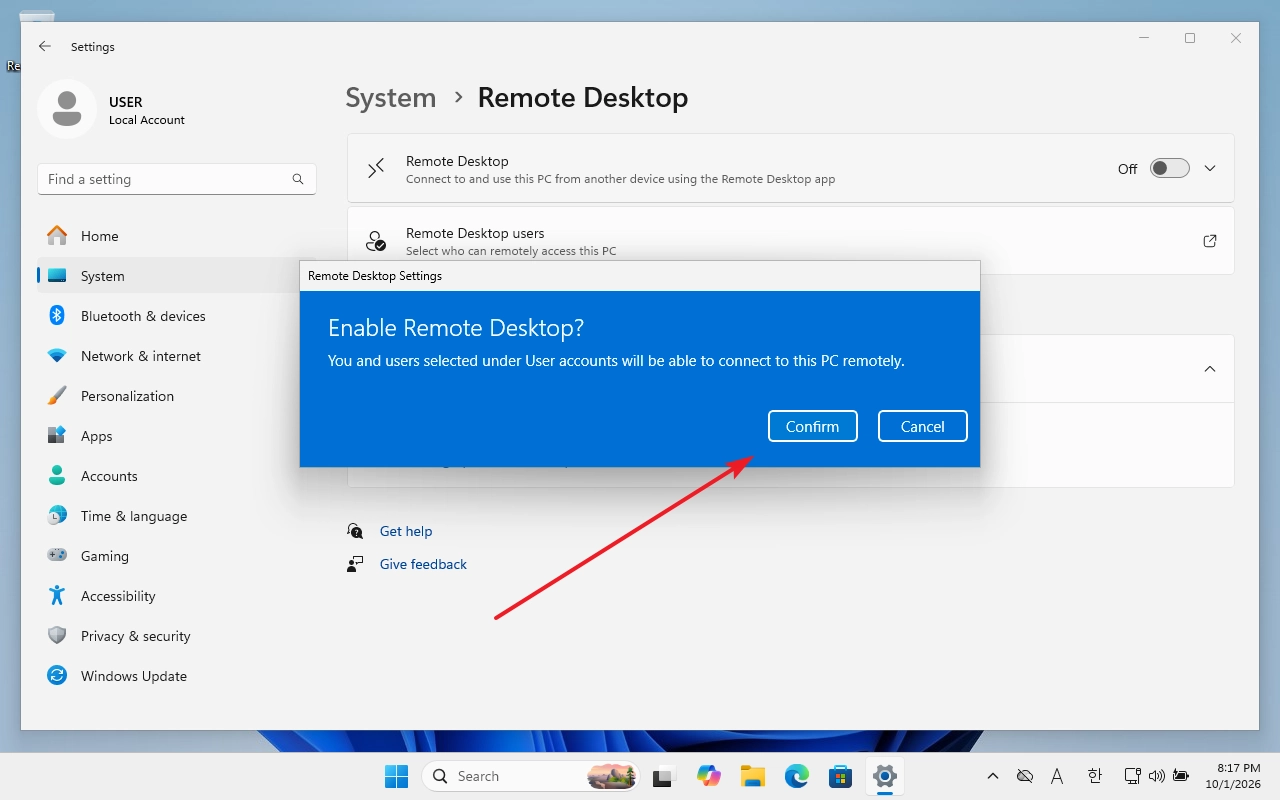
Enabling this setting allows Remote Desktop connections through Windows Firewall. A separate firewall or an organization's network policy can still block access, so check those controls if the connection fails.
Allow another user to connect
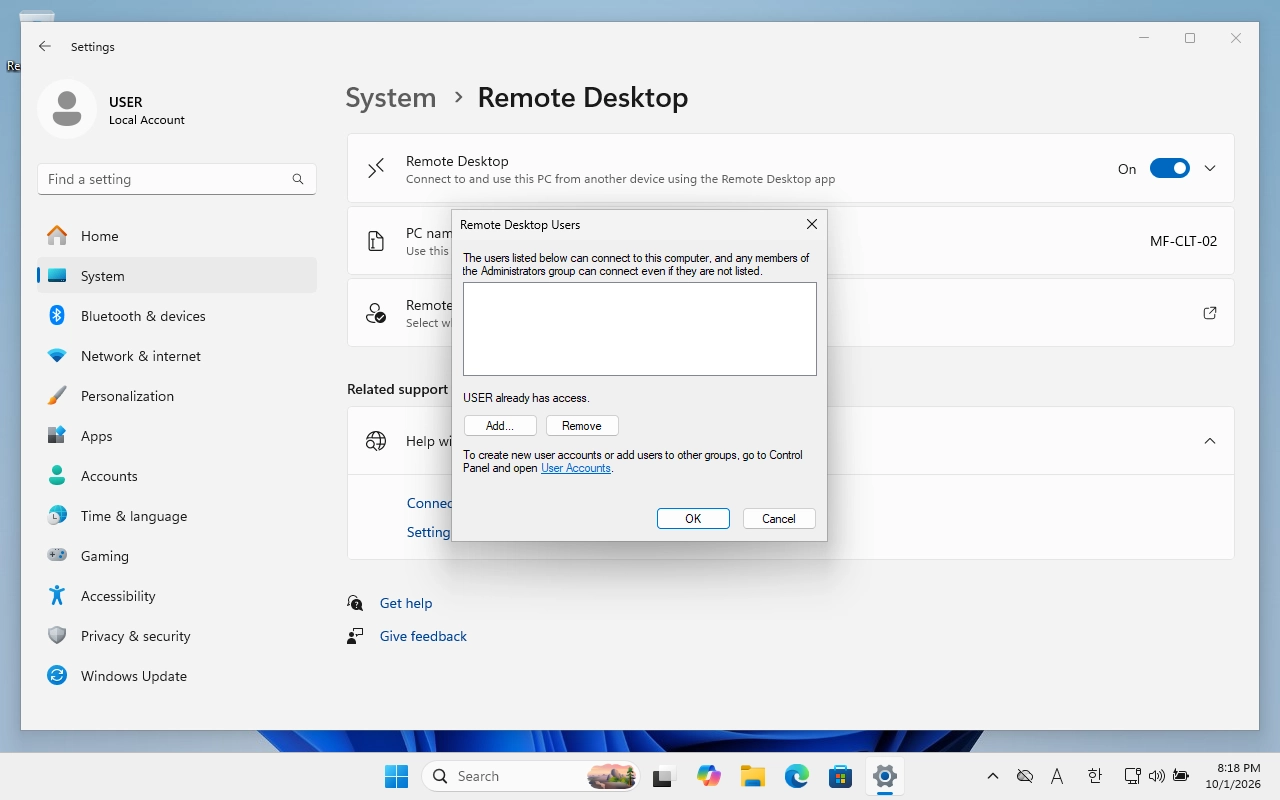
Members of the host's Administrators group can connect by default. To use a non-administrator account, explicitly add that account to the allowed Remote Desktop users. Grant access only to people who need it.
- On the host, open Settings → System → Remote Desktop and select Remote Desktop users. The label or location may vary slightly between Windows releases.
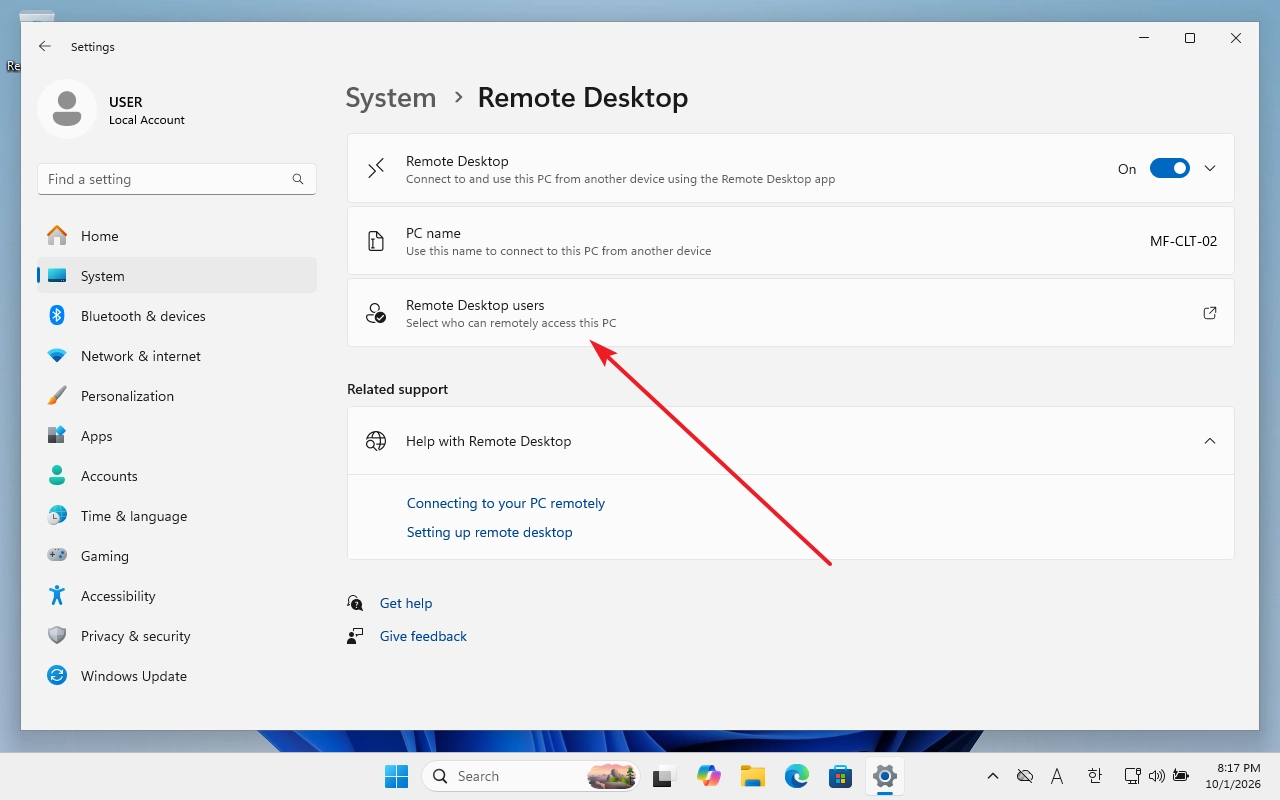
- Select Add, specify the account, and confirm. Check that the user appears in the list, then sign in with that account's credentials when connecting.
Test the connection and troubleshoot problems
From another Windows PC on the same network, search the Start menu for Remote Desktop Connection and open it. Enter the host's PC name or IP address, select Connect, and sign in with an allowed account. Microsoft also describes these steps in its Windows Remote Desktop instructions.
If you cannot connect, check the following before changing advanced settings. Microsoft's Remote Desktop troubleshooting FAQ identifies the PC name, network, firewall, account permissions, and power state as common causes.
- PC not found: Check the name. If name resolution fails on your local network, try the host's IP address.
- Connection fails: Confirm that the host is awake and online, Remote Desktop is enabled, and the firewall permits the connection.
- Sign-in is denied: Verify the account and password, then check whether the account is an administrator or has been added to Remote Desktop users.
Keep remote access secure
Turning on Remote Desktop opens a path for other devices on the network to reach the host. Enable it only where needed, use strong account passwords, and keep Network Level Authentication (NLA) enabled. NLA requires authentication before a remote session is established. When you no longer need remote access, turn off the Remote Desktop switch on the host.
These steps alone do not make the host reachable from another network. If you need access while away from home or the office, consider a virtual private network (VPN) first. Microsoft's outside-network access guide warns against exposing the PC directly to the internet through port forwarding and prefers a VPN.
Remote Desktop normally uses port 3389. Changing that port may be necessary for a particular network setup, but it does not replace strong credentials or careful control of external access.
How to Enable Remote Desktop on Windows 11
Learn how to enable Remote Desktop on a Windows 11 PC, allow users, and test a connection. This guide also explains the Windows Home limitation and security considerations for access from another network.
Windows 11 / Three Ways to Open Notepad
Open Notepad in Windows 11 from the Start menu, Windows Search, or the Run dialog. Follow the illustrated steps and learn what to check if the app does not appear.

Windows 11 / What Is Windows.old, and Can You Delete It?
You can remove Windows.old to free space in Windows 11, but doing so ends the option to return to the previous installation. Learn what to check first, when Windows removes it automatically, and how to delete it through Storage settings.

Windows 11 / Notepad Keyboard Shortcuts for Files, Tabs, and Editing
A practical reference to Windows 11 Notepad shortcuts for files, tabs, editing, search, and zoom. It also explains the difference between closing a tab and a window and what to check when a shortcut does not work.