Windows 11 / Three ways to open Device Manager and check device status
The Device Manager in Windows 11 is a tool for checking the hardware recognized by the computer, such as graphics cards, network adapters, and keyboards, as well as the status of devices. You can open it by right-clicking the Start button and selecting Device Manager, and the same tool can also be run from Start search or the Run window.
Which method should I use?
All three methods open the same built-in Device Manager window. If you are using a mouse, the Start button menu is simple to use, and if it is difficult to find the exact menu location, you can use search or the Run window.
| How to open | Path or input content | Situations where it is convenient to use |
|---|---|---|
| Start Button Menu | Right-click Start Button → Device Manager | When quickly opening with the mouse |
| Start Search | Search Device Manager from Start | When you don't know the location of the menu |
| Run Window | Windows + R → devmgmt.msc | When using the keyboard or when search is inconvenient |
The menu names may vary depending on the display language of the currently used Windows. Enter the Device Manager name in that language for search, and enter devmgmt.msc in the Run window regardless of the language.
Open from the Start Button Menu
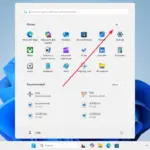
- Right-click the Start Button on the taskbar. The Start button position may vary depending on the taskbar alignment settings.
- From the menu that appears, select Device Manager.
- Check if a list of devices by type is displayed in the Device Manager window. If it was already open, also check if the existing window is behind other windows.
To open the same menu using the keyboard, press Windows + X and then select Device Manager. The result of selecting a menu item is that Device Manager opens, and at this step, drivers are not newly installed nor device settings changed. Microsoft’s How to open the device properties screen also guides how to access it via the start button menu.
Open from start search
- Press the Windows key to open Start.
- Type Device Manager in search. If Windows uses another display language, search for the corresponding name of this tool.
- From the search results, select Device Manager in Windows. Distinguish it from web search results or separately downloaded driver management programs.
If a list by device type appears, it has opened normally. If no search results appear, instead of repeating the same search, you can try calling the tool directly using the method below via the Run window.
Open from the Run window
- Press Windows + R to open the Run window.
- Enter the following in the input field. Type it exactly including the spelling and period, without quotation marks.
devmgmt.msc- Click OK or press Enter. Check if the Device Manager window opens and the device list is displayed.
This input is used to open the Device Manager management console included in Windows. There is no need to download any executable or create a script file. If an error occurs, record the error message, check the spelling, and compare whether the same problem occurs in the Start menu.
How to check device status and error codes
Opening Device Manager and determining whether a specific device has a problem are separate tasks. Do not assume that the device functions properly just because its name appears in the list; open the properties of the device you want to check.
- Click the arrow next to the type of device you want to check to expand the list. For example, a graphics card can be found under Display Adapters, and wired or wireless network devices can be found under Network Adapters.
- Right-click the actual device name and select Properties.
- Read Device status on the General tab. If a problem is reported, record the error code, message, and device name.
- If you need to provide driver information, check the displayed information such as provider and version on the Driver tab. When you have finished, close the properties window.
A yellow triangle with an exclamation mark may indicate that a problem has been reported with the device. Since the cause and action vary depending on the error code, do not assume it is a hardware failure just by looking at the display. For example, code 28 means the driver is not installed. You can check the appropriate action for the recorded code in Microsoft's Device Manager Error Code Guide .
When the window does not open or the desired device is not visible
First, distinguish a failure to open Device Manager from a missing entry in an otherwise working Device Manager window. The checks below depend on which problem you have.
- If only search fails: Open Device Manager through the Start button’s right-click menu or run
devmgmt.mscto check whether the problem is limited to search. - If a permission or organizational policy error is displayed: Record the error message and contact the administrator of your company or school computer. Administrator privileges may be required to change devices, so do not bypass organizational restrictions arbitrarily.
- If an external device is missing: First, check the power and cable connections and confirm that it is connected to the correct computer. Since the device name may be displayed differently than expected, also check the type of device.
- Looking for a previously connected device: Check View → Show hidden devices. A dimmed entry alone does not prove that a currently connected device has failed.
To check the status, just select the Properties of the device. Disable device or Uninstall device are other actions that affect the actual operation of the device, so proceed only if necessary after checking the cause of the error and recovery methods. When requesting consultation or support, providing the device name, error code, and time of occurrence together helps narrow down the scope of verification.