Windows 11 / Three Ways to Open Notepad
In Windows 11, you can open Notepad from Start → All apps, find it with Windows Search, or press Win + R and enter notepad. Search is usually the quickest choice when your hands are already on the keyboard; the Start menu is useful when you want to browse the installed apps.
The screenshots below come from the Korean-language Windows 11 interface. The button names in the instructions are their English equivalents, and the layout may vary slightly with your Windows version and Start menu settings.
Open Notepad from the Start menu
Use this route if you would rather locate the app in a list than remember a command. Microsoft documents both browsing the Start menu's app list and searching for an app in its guide to finding apps in Windows.
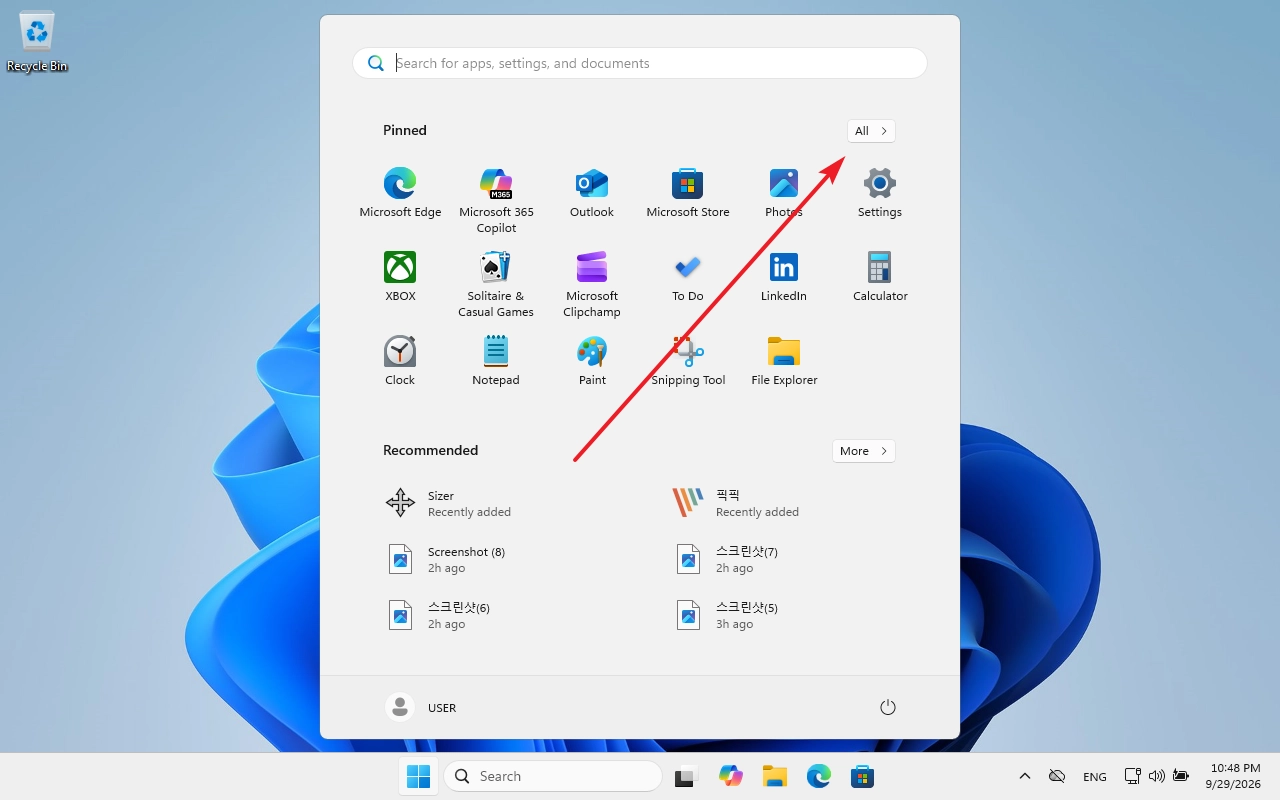
- Select Start on the taskbar, then select All apps. On some newer Start layouts, the control may be labeled All.
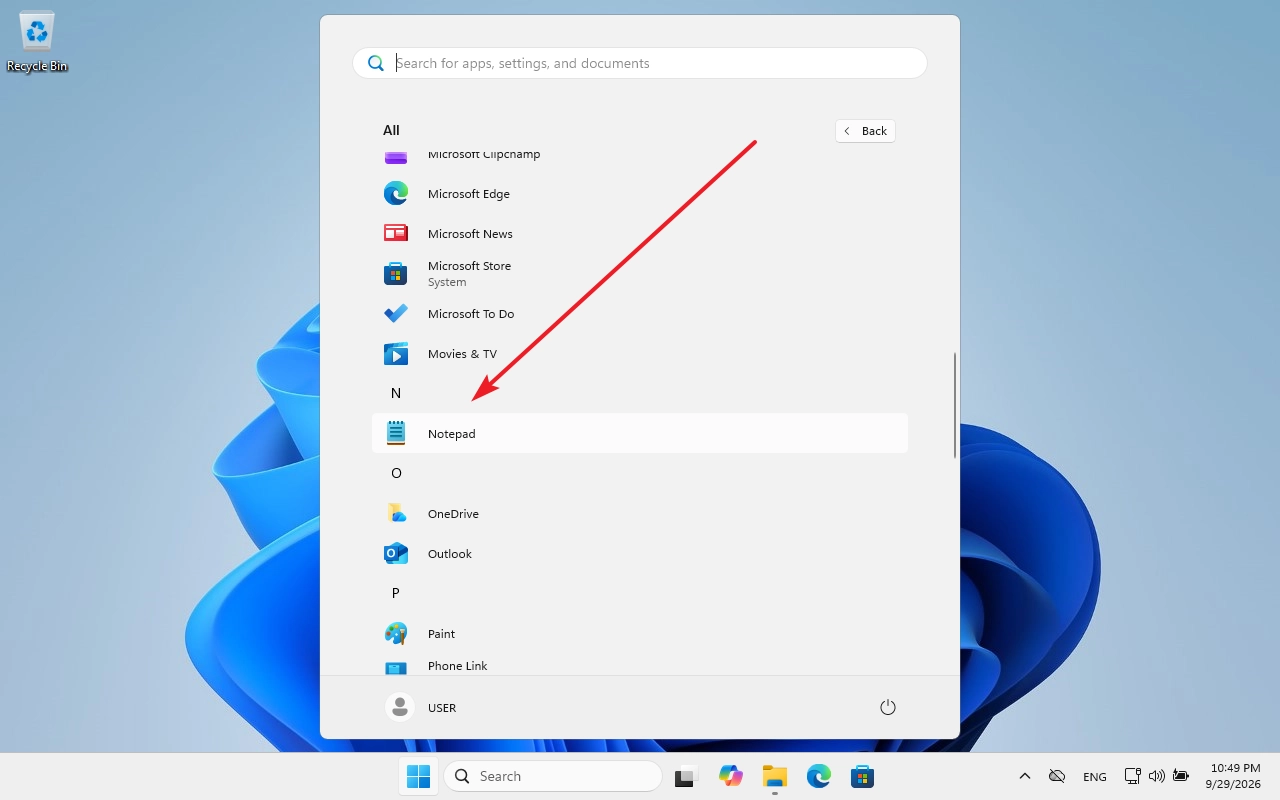
- Scroll to Notepad in the alphabetical app list and select it. The Notepad window should open.
Find Notepad with Windows Search
Search avoids scrolling through the app list. You can use the taskbar's Search control or press the Windows key and start typing; Microsoft lists both approaches.
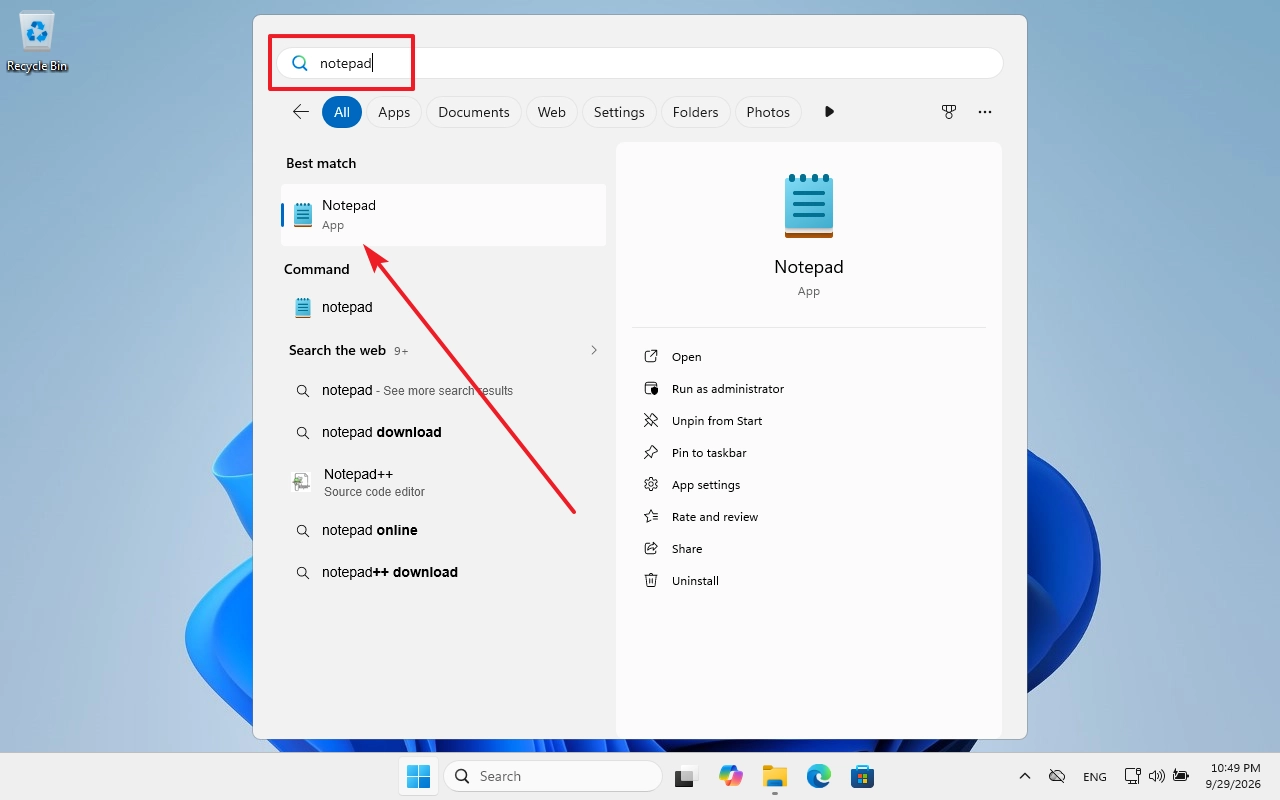
- Select Start or Search, or press the Windows key. Type
Notepad. - Choose Notepad from the app results. If several results appear, choose the app rather than a document containing the word “Notepad.”
Open Notepad with the Run dialog
This is a concise keyboard-based method if you know the command. Microsoft confirms that Win + R opens Run and that you can type a program name there; see its Run dialog instructions.
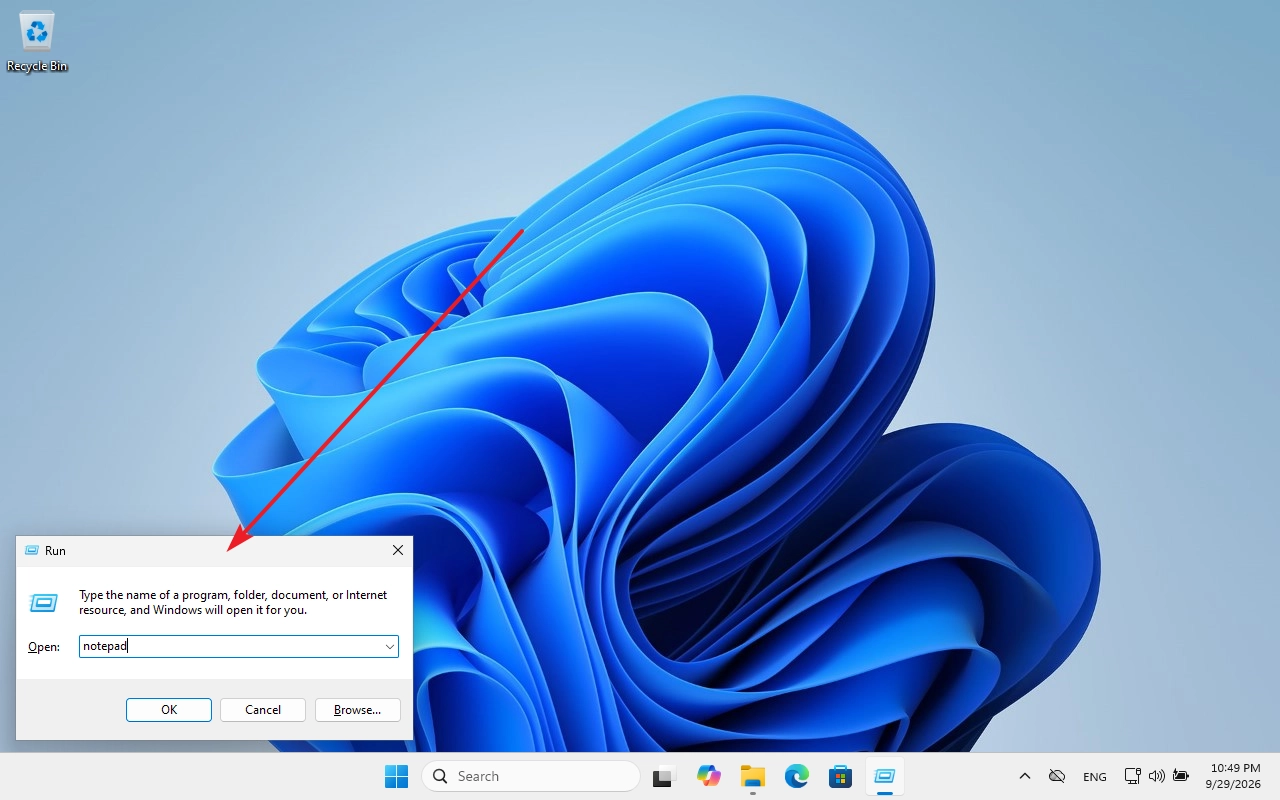
- Press Win + R to open the Run dialog.
- Type
notepadand press Enter. You do not need to type a full file path.
If Notepad does not appear
If a Start menu item is not where the screenshot shows it, try Search first: the Start menu arrangement can differ across PCs. If Search does not find Notepad and the Run command also fails, check Start → Settings → Apps → Installed apps to see whether Notepad is present. Microsoft describes that location in its instructions for checking installed apps. A missing result or an error should be investigated before assuming a particular installation problem.
How to Enable Remote Desktop on Windows 11
Learn how to enable Remote Desktop on a Windows 11 PC, allow users, and test a connection. This guide also explains the Windows Home limitation and security considerations for access from another network.

Windows 11 / Notepad Keyboard Shortcuts for Files, Tabs, and Editing
A practical reference to Windows 11 Notepad shortcuts for files, tabs, editing, search, and zoom. It also explains the difference between closing a tab and a window and what to check when a shortcut does not work.
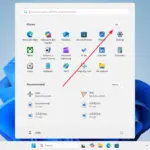
Windows 11 / Three Ways to Open Notepad
Open Notepad in Windows 11 from the Start menu, Windows Search, or the Run dialog. Follow the illustrated steps and learn what to check if the app does not appear.

Windows 11 / What Is Windows.old, and Can You Delete It?
You can remove Windows.old to free space in Windows 11, but doing so ends the option to return to the previous installation. Learn what to check first, when Windows removes it automatically, and how to delete it through Storage settings.