Windows 11 / Open the Run dialog and launch programs or folders
The Run dialog in Windows 11 is a small input window for opening targets by entering program names or file/folder paths. You can open it immediately by pressing Windows + R, and it can also be accessed from the start button right-click menu or start search.
Opening the Run dialog via keyboard and start menu
Hold the Windows key, press R, then release both keys. The Run dialog opens with an input field where you can enter a command or path. Opening the dialog alone does not launch the target program or modify files.
To open Run with the mouse, or if the keyboard shortcut is unavailable, use one of these routes.
- Right-click the Start button on the taskbar and select Run. You can also open the same menu with Windows + X.
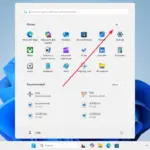
- Press the Windows key to open Start, search for Run, and select the Windows Run app. If Windows uses another display language, search for the corresponding name of the app.
Microsoft's Windows Shortcut Guide explains that Windows + R opens the Run dialog, and Windows + X opens the Quick Link menu. No matter how you open it, the purpose is the same: to access the Run dialog.
Example of entering and checking results
If you are using it for the first time, you can open the built-in tool that displays system information to get used to the input method. No separate file download or program installation is required.
- In the input field of the Run dialog, enter the following. If previous content remains, click the input field, select all with Ctrl + A, and replace it with the new content.
msinfo32- Click OK or press Enter.
- Check that the System Information window opens and displays entries such as System Summary. This opens an information viewer; it does not change system settings.
- When you have finished, close the System Information window. If you have not launched the target yet, click Cancel or press Esc to close the Run dialog.
Microsoft's Run feature and System Tools Using Guide also provides an example of opening System Information by typing msinfo32 in the Run window and pressing Enter.
How are program names, paths, and searches different?
In the Run window, you enter the program name that Windows can find or the path of an actual file or folder. In the example above, msinfo32 is the name used to open the tool, and it is not a place to enter general sentences describing how to use a program. If you do not know the exact app name or want to find an installed app from a list, Start Search might be more convenient.
When opening a folder, use the full path of the folder that actually exists. For example, if Windows is installed on the C drive in the Windows folder, you can type C:\Windows to open that folder in File Explorer. On a computer where it is installed in a different location, you must change it to your actual path and do not guess the path based only on the folder name.
Opening a program from the Run dialog does not necessarily mean you have administrator privileges. The program being run and the permissions required are separate conditions. Also, even if the Run dialog disappears after opening a program, that does not mean the program has been closed, so check the results in the newly opened window.
When the Run dialog does not open or the target cannot be found
- If only Windows + R does not work, try opening it from the right-click menu of the Start button or from Start search. If it opens through another method, you can distinguish the problem as being with the shortcut or keyboard input.
- If an error appears saying the target cannot be found, check the spelling, spacing, and whether the actual file or folder exists. Also, make sure you did not copy a descriptive sentence from web search results or any decorative symbols preceding the command.
- If only installed programs cannot be opened by name, look for the app in Start search. Not all installed apps can be run from the Run dialog using a short name. To run something by file path, first check the actual location of the executable file in File Explorer.
- If you see a message saying execution is restricted on a company or school device, report the error message to your administrator. Input errors and organizational execution restrictions have different causes, so repeatedly entering the same command alone may not resolve the issue.
By checking both the content entered in the Run dialog and the error that actually appeared, it is easier to distinguish whether the problem is that the window itself does not open or that the target cannot be found in the opened window.