What Is Integrated Graphics? Differences from a Graphics Card and How to Choose
Integrated graphics is a graphics processing unit (GPU) built into the same chip or processor package as a CPU. It can provide display output and handle graphics or video without a separate graphics card, but its capabilities depend on the processor model, memory, and the PC’s display connections. Having integrated graphics does not guarantee enough performance for every game or video-editing task.
How is integrated graphics different from the CPU?
General-purpose CPU cores and GPU resources have different roles. Integrated graphics does not mean the CPU cores simply perform all graphics work themselves. GPU resources within the processor handle suitable graphics tasks. Depending on the product, the CPU and GPU may share one silicon die or occupy different dies within one package.
The GPU can help draw the operating system and browser interface, decode supported video formats, and render 3D graphics. Decoding turns compressed video into frames for playback. Some models also accelerate encoding, which compresses video for storage or delivery, but codec and application support must be checked separately.
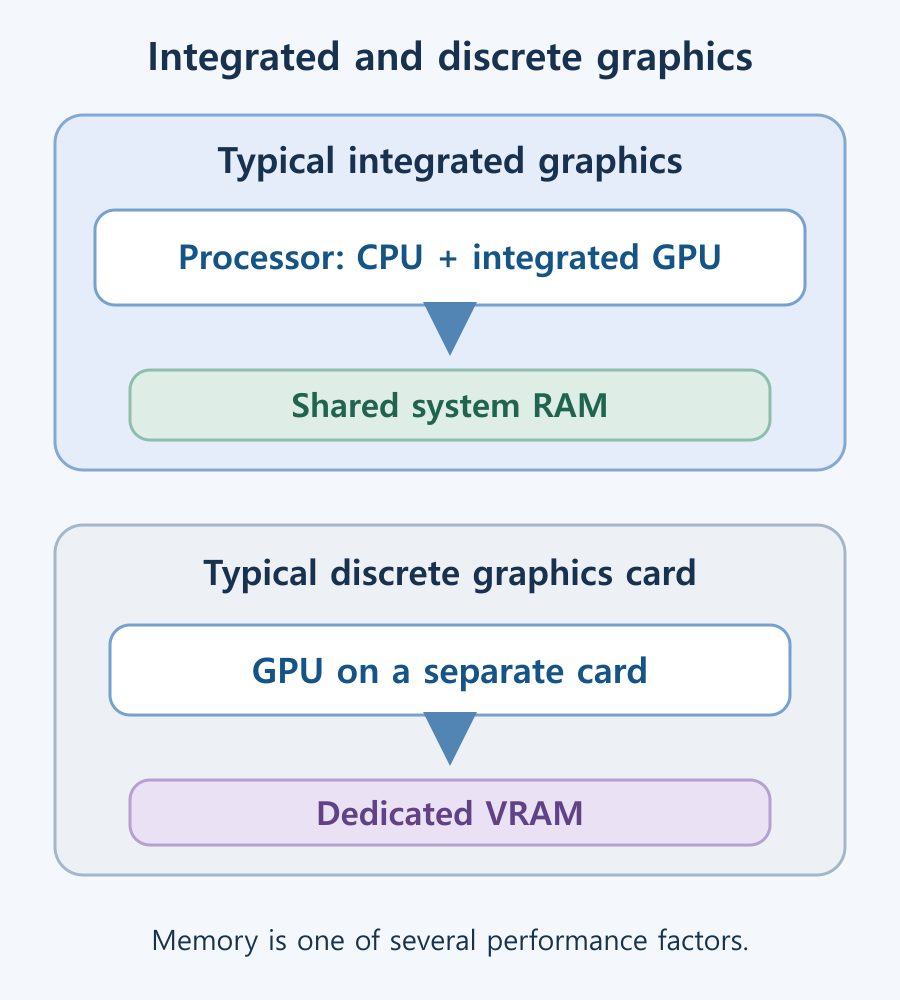
The diagram compares a typical integrated GPU sharing system memory with a separate graphics card using dedicated memory. It is not an exact wiring diagram for every product. Strong CPU performance does not imply that the integrated GPU improves by the same proportion.
Integrated graphics versus a separate graphics card
| Factor | Integrated graphics | Separate graphics card |
|---|---|---|
| Hardware | GPU resources integrated with the processor | A separate GPU and circuit board |
| Memory | Usually shares system RAM | Typical PC cards carry dedicated video memory, or VRAM |
| Cost and space | Can avoid the price and slot space of a separate card | Requires a card budget, case space, and suitable power |
| Performance factors | GPU model, memory, power limits, and cooling | GPU model, VRAM, power limits, and cooling |
| Upgrades | The integrated GPU is not normally replaceable by itself | Cards can be replaced in desktops with suitable expansion support |
Choosing integrated graphics does not prevent you from adding a graphics card later. A desktop may support one if it has the appropriate PCI Express slot, case clearance, power supply, and system support. Laptops and very compact PCs may not provide that expansion route, or may require a separately supported solution.
Avoiding a separate card can reduce cost and space requirements, but integrated graphics does not always mean lower power consumption or heat under every comparison. Performance targets, power settings, and workload matter. Judge demanding games and large 3D projects by their actual requirements and software support.
Many integrated GPUs use some of the same system RAM as the CPU. Intel’s graphics-memory FAQ explains the use of system memory instead of a separate graphics memory bank, with the operating system and driver managing its use.
Memory bandwidth matters as well as capacity. Because the CPU and GPU can use memory at the same time, channel configuration and speed can affect graphics performance. However, adding RAM does not automatically make the GPU proportionally faster. Fixing insufficient memory capacity and increasing graphics execution capability are different things.
A shared GPU memory limit shown by Windows is not necessarily memory permanently occupied by the GPU. A large shared-memory figure also does not make an integrated GPU equivalent to a graphics card with dedicated VRAM. Follow the system manufacturer’s supported memory configuration and slot arrangement. Do not simply maximize firmware memory reservations without a reason.
Which tasks can integrated graphics handle?
- Documents, browsing, and desktop output: Check the resolution and monitor count you need. Multiple high-resolution displays can make connection and output limits important even in an office PC.
- Video playback: Check the codec, bit depth, player, and output path as well as resolution. Not every integrated GPU handles every 4K video format in the same way.
- Games: Compare results for the specific game at your target resolution and settings. The integrated category alone cannot guarantee a frame rate or confine every model to simple games.
- Video editing and streaming: Separate effects processing from hardware video encoding. Confirm that the application supports acceleration with that GPU and codec.
For example, the Core Ultra 7 265K specification lists its graphics name, output standards, and H.264, H.265, and AV1 encode/decode support separately. Reading these items individually helps distinguish basic display capability from acceleration of your particular workflow.
Do not judge graphics support from the CPU name alone
Not all processors include integrated graphics. Intel states that desktop Core processors with an F or KF suffix require a separate graphics card. Naming conventions should not be carried across manufacturers or generations without checking the exact product’s graphics specification.
AMD Ryzen products also differ in graphics availability and configuration. AMD’s desktop Ryzen product list separates the graphics model from the CPU core count. Products such as the Ryzen 5 8600G with Radeon 760M emphasize their integrated graphics, so neither CPU core count nor price tier is enough to compare GPU capability.
- Find the official specification for the full CPU model name.
- Check Graphics or Processor Graphics for GPU availability and the exact model.
- Check required codecs, resolution, refresh rate, and simultaneous display support.
- Compare those capabilities with the actual ports and supported combinations on the motherboard or laptop. The CPU’s theoretical limit alone does not confirm what the complete PC can output.
What to check when integrated graphics gives no display
- Confirm that the CPU has integrated graphics. On a typical consumer motherboard, HDMI or DisplayPort connectors cannot provide output from a CPU that has no GPU.
- Check the cable location. Normally, use the graphics card’s ports for a separate card and the motherboard’s ports for integrated graphics.
- Check the monitor’s selected input, cable standard, and physical connections. Simplify the test to one known-supported display and cable where possible.
- Read the motherboard manual for integrated graphics activation and primary-output settings. Simultaneous use with a separate card depends on board and firmware support.
- Once Windows starts, check the GPU in Device Manager and install the PC or GPU manufacturer’s supported driver. For a laptop, start with the PC manufacturer’s recommended driver.
Systems with a separate management graphics controller, such as some servers, can behave differently from ordinary consumer PCs. For a newly assembled PC, also verify CPU support and the required motherboard BIOS. Choose integrated graphics by checking whether the complete system supports your displays and applications, rather than stopping at the presence of a GPU.

Laser Printers / Features, Advantages, and Disadvantages
Understand how laser printers work, what toner and drums do, and where the technology's strengths and limitations matter. Compare document printing, consumable costs, paper compatibility, and inkjet alternatives to decide whether a laser printer suits your needs.
M.2 SSD Overheating: Symptoms, Temperature Checks, and Cooling
Learn how to distinguish possible thermal throttling from other SSD slowdowns, check temperatures with CrystalDiskInfo or manufacturer tools, and improve cooling using model-specific guidance.
What Are CPU Cores? Core Counts and Performance Explained
Understand physical CPU cores, logical processors, hybrid core layouts, and the limits of core-count comparisons. Learn how to check your PC and judge processors for your workload.
What Is a CPU Socket? Types and Motherboard Compatibility Checks
Understand CPU sockets and LGA, PGA, and BGA connections. Follow a practical checklist for motherboard CPU support, BIOS versions, memory, power, and cooler compatibility.
Home Printer Buying Guide / Printing Technologies, Running Costs, and Essential Features
Choose a home printer by matching its printing technology, maintenance needs, and total running costs to your usage. Compare inkjet, ink tank, and laser options, along with two-sided printing, scanning, wireless connections, and installation requirements.

What Are CPU Threads? Cores, Logical Processors, and Software Threads
Learn the difference between hardware threads, software threads, logical processors, and physical cores. Understand SMT resource sharing and check the counts reported by Windows.
What Is Integrated Graphics? Differences from a Graphics Card and How to Choose
Compare integrated graphics with a separate graphics card, including shared RAM and upgrade options. Check CPU graphics support, workload requirements, and common causes of missing display output.