Windows 11 / Open Command Prompt as administrator and close it after the task
To open Command Prompt (CMD) as an administrator on Windows 11, search for cmd in Start and select Command Prompt → Run as administrator. After completing the required approval in User Account Control, Command Prompt with administrator privileges will open. When using Terminal, first open the terminal as administrator and then select the Command Prompt tab.
What is the difference between normal execution and running as administrator?
Command Prompt is a program that interprets and executes the commands you enter. Running it as administrator grants access to targets like system settings that cannot be changed with regular privileges, but not every command you execute will automatically work correctly or perform the necessary action. First, check the documentation of the command you intend to use to see if administrator privileges are required.
Even if you are logged into Windows with an administrator account, programs you usually open can be run with standard privileges. Having an administrator account and running this particular CMD window with elevated permissions are separate conditions. In this article, only the window used for this operation is opened with administrator privileges, and the shortcut is not changed to always run with administrator privileges.
Open CMD with administrator privileges from the Start search
- Press the Windows key and type
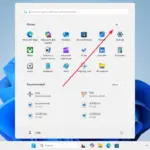
cmd. - In the search results, find Windows Command Prompt. Right-click on the result and select Run as administrator. If the same item appears next to the result, you can select that item as well.
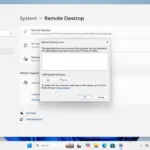
- Confirm in the User Account Control screen that it is the program you want to run. On an administrator account, approval may be required; on a standard user account, the administrator account credentials may need to be entered.
- After approval, check for the Administrator label in the title or display of the opened window. Do not assume it has administrator privileges just because of the location of the window or the current folder being
System32.
You should distinguish between the normal execution of just clicking a search result and running as administrator. Microsoft's procedure to open an administrator command prompt also guides you to select this item from the search results. There is no need to run system recovery commands just to open the window.
Opening a Command Prompt tab in an administrator terminal
Windows Terminal is a window that displays multiple command-line programs as tabs, and Command Prompt and PowerShell are different programs that can run within it. You should not assume that CMD is being used just because the terminal is open. From Windows 11 22H2 onward, the default console host has been changed to Terminal, so even if CMD runs, it may appear inside the terminal window.
- Right-click the Start button or press Windows + X.
- Select Terminal (Admin) and provide the necessary approval in User Account Control. The item name may vary depending on your Windows version and display language.
- Open the down-arrow menu in the terminal’s tab bar and select Command Prompt. If the default tab is PowerShell, choose the CMD profile before entering CMD-specific syntax.
- Make sure the Command Prompt tab is open. According to Microsoft's Windows Terminal Administrator Mode Explanation, you cannot mix administrator tabs and standard privilege tabs in a single terminal window. Perform regular tasks in a separate standard privilege window.
Simply adding a CMD tab in an already open standard privilege terminal does not grant administrator rights. You must first run the terminal window itself with administrator privileges. The reason CMD appears inside the terminal can be seen in Microsoft's Windows 11 Console Host Changes Guide.
Check command input and close CMD
After selecting the CMD tab, enter the following command and press Enter to display the path of the command processor registered in the environment variables. It is not a command that changes files or system settings.
echo %COMSPEC%In a typical Windows installation, a path similar to the following will be displayed. The path may vary depending on the Windows installation location.
C:\Windows\System32\cmd.exeThis output does not prove administrator privileges. The same path may appear in a standard permission CMD as well. If %COMSPEC% is displayed as-is, check the tab name to ensure it was not entered in another program such as PowerShell. In this example, no environment variable values are changed, so there are no settings to restore.
When you finish the task, you can exit the current CMD with the following command.
exitThe standalone CMD window will close, and the terminal will end the current CMD session. How tabs or windows close may vary depending on terminal settings. If another tab with administrator privileges remains, close it as well. Closing the window does not undo the changes made by the previously executed commands.
When approval is not granted or access is denied
- If an administrator password is requested: this may be a normal approval process that requires administrator credentials for standard users. If you do not have an administrator account you can use, contact the device administrator. Do not resolve it by repeatedly entering a standard user password or by turning off account control.
- If you cannot find the administrator item in the terminal: Use the first method of running as administrator from the command prompt in Start Search. If execution is restricted due to company or school policies, pass the displayed message to the administrator.
- If access is denied after running a command: First, determine whether the window where the error occurred is actually running with administrator privileges, and whether the command and target path are correct. Administrator privileges do not automatically override ownership, security policies, or remote system permissions for all files, so do not disable security settings across the board based on the error alone.
The approval method of User Account Control (UAC) varies depending on the type of account and organizational policies. The elevation process is explained in Microsoft's How User Account Control Works. Use the administrator window only for necessary tasks, and when returning to general tasks, it is easier to distinguish by closing the administrator window and opening a new window in normal mode.