Windows Server 2025 / How to Create a GPO and Link It to an OU
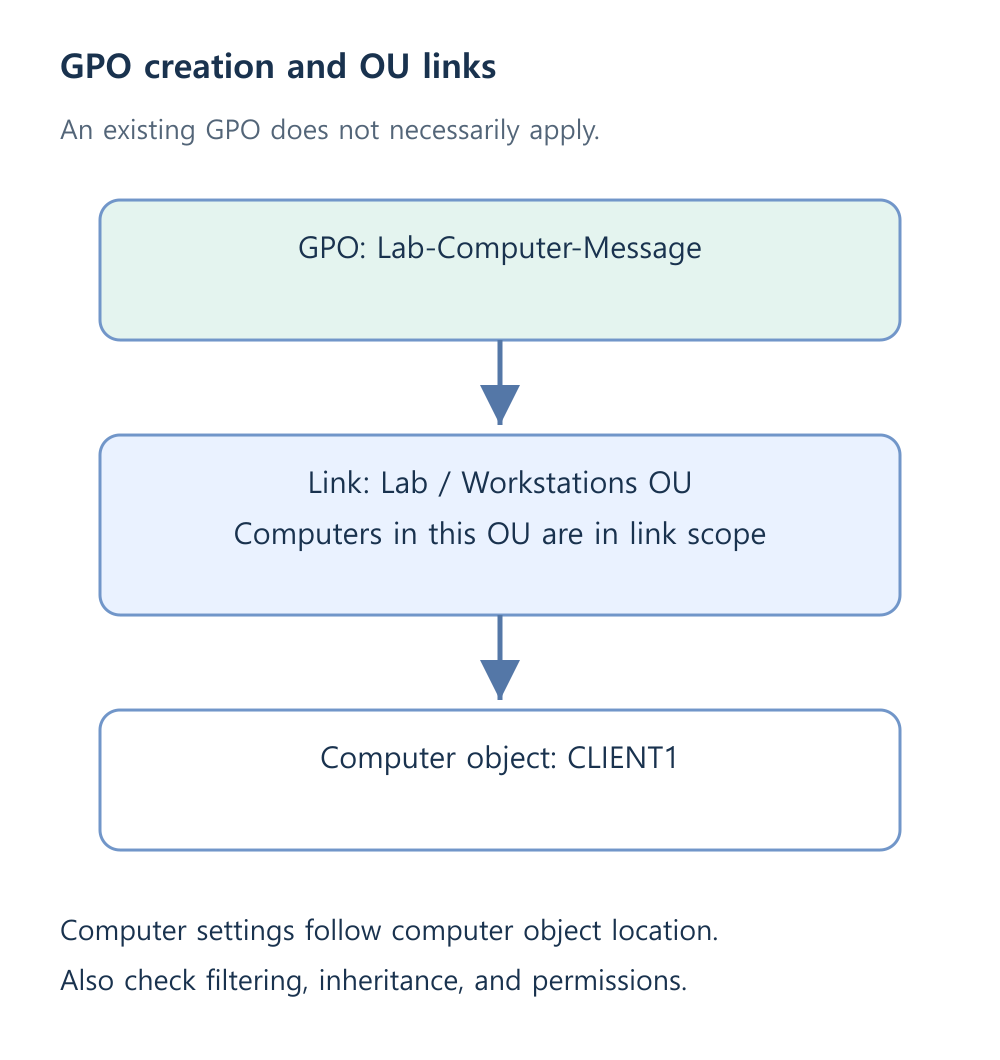
A Group Policy Object (GPO) groups user and computer settings. In AD, links to sites, domains, or OUs establish potential scope. Computer policy follows the computer object’s location and other application conditions, not the OU of whoever signs in.
Limit the lab to the intended computer
CLIENT1 must be joined to ad.example.test and located in Lab\Workstations. Do not practice on the default domain policy or the Domain Controllers OU. The ordinary labuser1 account can remain in LabUsers for this computer-setting test.
Use Group Policy Management Console (GPMC), gpmc.msc, on DC1 or an RSAT PC with appropriate create, edit, and link rights. Keep privileged work separate from normal use. Review Group Policy concepts.
Get-ADComputer -Identity 'CLIENT1' | Select-Object Name,DistinguishedName
Create and link the GPO
- In GPMC, navigate through the forest and domain to Lab → Workstations.
- Choose Create a GPO in this domain, and Link it here.
- Name it Lab-Computer-Message.
- Check its link location and enabled state on Scope. Leave Enforced and WMI filtering unchanged for this lab.
- Record and retain the default security filtering while first testing application.
A GPO listed under Group Policy Objects is not the same as a link on an OU. A single GPO can have several links, so check all uses before editing. See GPO link behavior.
Configure a visible computer sign-in message
Use a harmless lab message rather than weakening security or inventing an organization’s legal notice.
- Edit the GPO under Computer Configuration → Policies → Windows Settings → Security Settings → Local Policies → Security Options.
- Set Interactive logon: Message title for users attempting to log on to Lab computer.
- Set the corresponding message text to Windows Server course lab.
- Save and inspect both values in GPMC’s Settings tab.
The title and text work together. Microsoft’s policy mapping identifies the settings; this exercise uses GPO rather than adding an MDM deployment.
Verify the client result
On CLIENT1, use an elevated shell to refresh computer policy and generate a timestamped report:
gpupdate /target:computer /force
$gpReport = Join-Path $env:TEMP ('gpresult-' + (Get-Date -Format 'yyyyMMdd-HHmmss') + '.html')
gpresult /scope computer /h $gpReport
$gpReport
Check the applied GPO and the setting’s source, then save work and sign out to inspect the next sign-in message. A GPO name in the report and the intended visible title are separate checks. Some policies need sign-in or restart; a successful refresh does not imply an immediate change to every current-session setting.
Reverse the settings deliberately
To remove the message, confirm the removal behavior of these settings, clear the two values as appropriate, and refresh CLIENT1. Not Configured or unlinking does not universally restore every policy type to its former value.
Removing an OU link differs from deleting the GPO; another link may still use it. Retain this GPO for the following precedence exercise. For missing results, check OU, computer versus user configuration, links, filters, permissions, and DC access rather than creating a domain-wide enforced link.