How to hide or show gridlines in an Excel worksheet
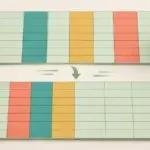
To hide gridlines in Excel, select the worksheet and clear View → Show → Gridlines. Cell values and any borders you applied remain in place. The gridline setting for printing is separate, so check print preview before you share a PDF or print the sheet.
Hide or show gridlines on the sheet
- In Excel for Windows, select the worksheet tab and clear Gridlines in the Show group on the View tab. Select the same box again to restore the lines. If a formatted table still has an outline, the hide setting has worked as expected.
Select a single sheet if the change should affect only that sheet. If you selected several tabs together, right-click a sheet tab and choose Ungroup Sheets after making the change, so later edits are not applied to the group.
On a Mac, use Page Layout → Gridlines and clear View. In Excel for the web, use View → Show → Gridlines. Re-enable the corresponding option to show the lines again.
Microsoft’s guide to showing and hiding worksheet gridlines
Tell gridlines and borders apart
Gridlines mark the boundaries of cells throughout the worksheet. Borders are formatting applied to particular cells from Home → Borders. Try applying All Borders to A1:C5, then hide the gridlines. The outline and internal lines in A1:C5 remain while the faint guides around the rest of the cells disappear.
Gridline visibility is a sheet setting. To add lines in one range without displaying them across the entire sheet, apply borders to that range.
Set gridlines for printing separately
On Windows, select Print in the Gridlines section of Page Layout → Sheet Options to include the gridlines. Clear it if you want only the applied borders, then press Ctrl+P and inspect the preview. Excel for the web does not provide a print-gridlines option. Add cell borders if the lines need to appear when printed from the web.
Gridlines normally print around cells with data. To include empty cells, define a print area that contains them or apply borders to those cells.
Microsoft’s guide to printing cell gridlines
When gridlines are missing from only some cells
Check the fill color of the affected cells. Any solid fill, including white, hides gridlines. Use Home → Fill Color → No Fill if you can remove the color. If you need to keep it, add borders instead.
If the guides are hard to see throughout the sheet, open File → Options → Advanced in Excel for Windows, find Display options for this worksheet, and adjust the gridline color for the selected sheet. Make sure the gridlines are enabled.