Windows Server 2025 / How SMB Share and NTFS Permissions Work Together
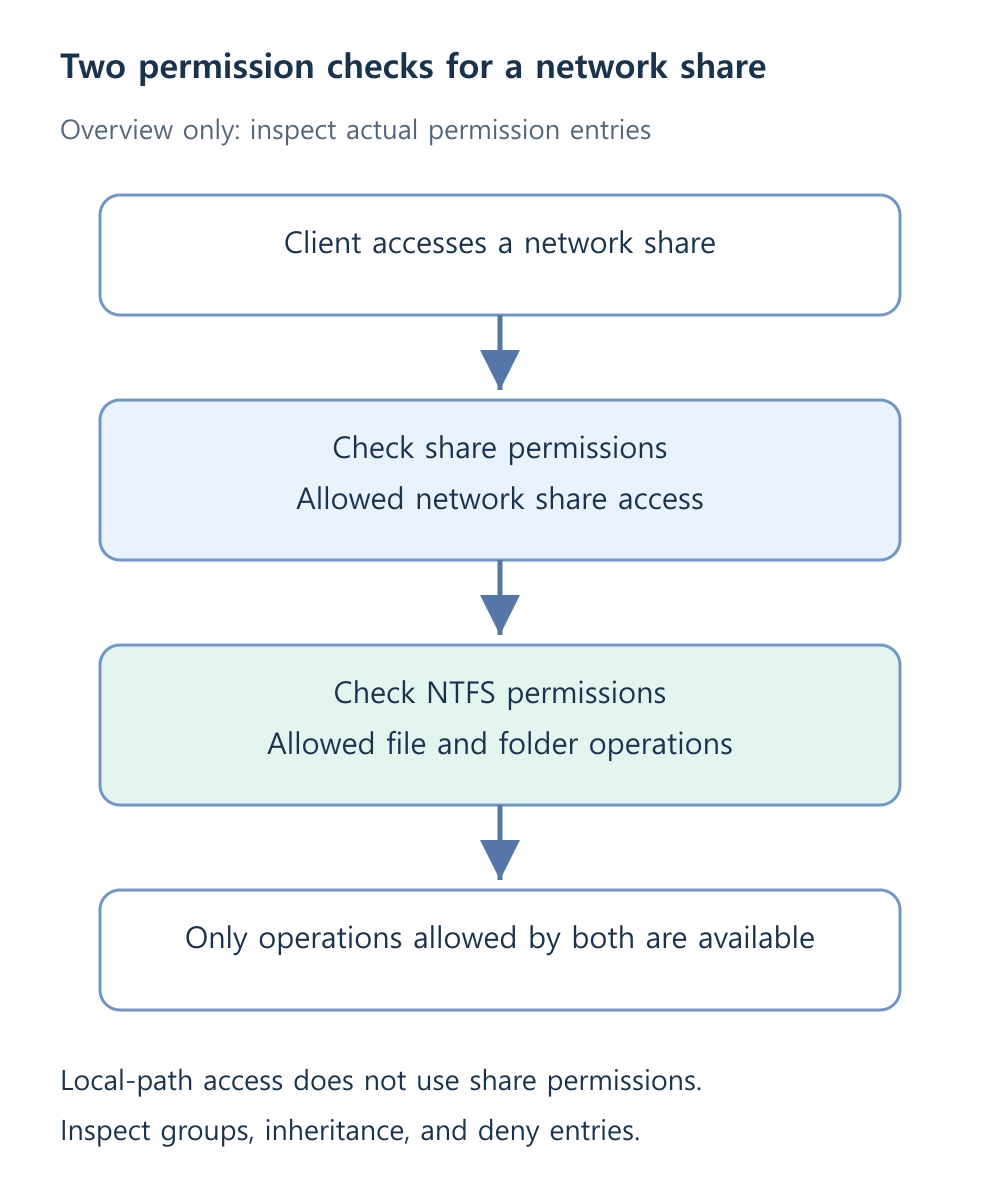
Network access to an SMB share must satisfy both share and NTFS permissions. Share-level Read still restricts a user whose NTFS rights allow Modify. Access through the server’s local file path does not use the share-permission check.
Prepare a new folder and ordinary user group
FS1 is a member of ad.example.test with an NTFS D: data volume. labuser1 belongs to GG_LabUsers. Create a new empty D:\LabShares\LabRead rather than changing an operational folder.
Server Message Block (SMB) provides network file sharing. Use the server’s normal name, \\fs1.ad.example.test\LabRead, with domain credentials. Review SMB file sharing. Check the file-server role and the relevant Domain-profile firewall scope:
Get-WindowsFeature FS-FileServer
Install-WindowsFeature FS-FileServer
Set NTFS read access
- Open the new folder’s Properties → Security → Advanced and inspect inherited access.
- For this empty lab folder only, disable inheritance and convert inherited entries to explicit entries.
- Retain needed SYSTEM and administrator Full Control.
- Inspect broad Users, Authenticated Users, or Everyone grants and adjust only this folder for the lab.
- Allow AD\GG_LabUsers Read & execute, List folder contents, and Read with the intended child scope.
Do not apply this inheritance procedure to an existing data tree. Prefer a clear set of required allow entries to a collection of deny entries added to counter unexplained broad permissions.
- Use Properties → Sharing → Advanced Sharing and publish the folder as LabRead.
- Review default entries and grant GG_LabUsers only Read on the share.
- Preserve required administrator management rights without granting ordinary users Full Control.
- Record the share name, folder path, share permissions, and NTFS entries separately.
Get-SmbShare -Name 'LabRead' | Select-Object Name,Path
Get-SmbShareAccess -Name 'LabRead'
(Get-Acl -LiteralPath 'D:\LabShares\LabRead').Access | Select-Object IdentityReference,FileSystemRights,AccessControlType,IsInherited
Run queries on FS1. New-SmbShare parameters control share access separately from file-system access control lists (ACLs). Creating a share does not configure the desired NTFS ACL.
Test actual access from CLIENT1
- As the FS1 administrator, create readme.txt in the folder.
- Sign in fresh to CLIENT1 as labuser1 and check whoami and whoami /groups.
- Open \\fs1.ad.example.test\LabRead and read the test file.
- Attempt creating or modifying a file and verify the intended read-only result.
Do not use an existing administrator SMB connection as a standard-user test. Windows can reuse credentials for the same server; inspect current connections and save work before closing only the relevant connection.
Compare one permission layer at a time
| Share | NTFS | Expected network behavior under the simplified conditions |
|---|---|---|
| Read | Read | Read |
| Read | Modify | Read |
| Change | Modify | Verify create, edit, and delete operations |
First change only GG_LabUsers NTFS access to Modify while retaining share Read, then confirm writes still fail. Next allow share Change and test creating, editing, and deleting a small file. Real results also depend on group memberships, deny entries, inheritance, and scope; inspect the actual ACL.
Restore both ordinary-group layers to Read and retest. Clean up only intended test files through an authorized local path. Removing a share is different from deleting folder data; preserve the share and records if continuing.