How to use Facebook Messenger on Windows 10 after the desktop app ended
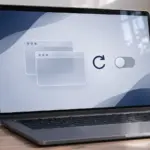
The standalone Facebook Messenger app for Windows has been discontinued. On Windows 10, you can open facebook.com/messages in a browser to send and read messages. For a dedicated window and a taskbar icon, install the page as an app in Microsoft Edge.
Why the Microsoft Store instructions changed
Messenger used to be available from the Microsoft Store. Meta discontinued the standalone desktop app and directs computer users to facebook.com/messages. The old Store screens and installation steps no longer apply.
Meta’s notice about using Messenger on the web
Open Facebook messages in a browser
Open the Facebook messages page below in your browser. If asked to sign in, use the Facebook account associated with your existing conversations.
Select a conversation and type in the message field below it. If you want quicker access without a dedicated window, bookmark the page.
Open messages in a Microsoft Edge app window
- In Microsoft Edge, open Facebook messages and make sure you can see the conversation list.
- At the top right, select Settings and more (…) > More tools > Apps > Install this site as an app. Choose a name or keep the suggested one, then select Install.
- Enter edge://apps in the Edge address bar to find the new web app. Select Open on its card to launch a dedicated window. Use Details to pin it to the taskbar or create a desktop shortcut.
Microsoft’s guide to installing and managing Edge web apps
If conversations are missing or you want to remove the web app
If you signed in with a different account, switch to the one associated with your chats. If Messenger asks you to restore encrypted chats, follow its on-screen instructions. It may ask for your secure storage PIN to restore chat history.
To remove the web app, open edge://apps and select Details > Uninstall on its card. Facebook messages remain available through the browser.