How to create and compare sparklines in Excel
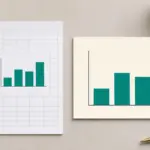
A sparkline is a small chart inside one worksheet cell. Select the destination, choose a type under Insert → Sparklines, and set the source range. A chart for each row lets you scan trends quickly. The steps below use desktop Excel for Windows.
Choose a sparkline type
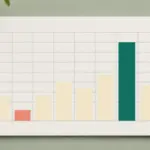
Use Line for movement over time, Column for the size of each period’s value, and Win/Loss when only the sign matters, such as profit versus loss. Win/Loss does not show the magnitude. Keep the source values or a full chart with axes when readers need exact comparisons.
Add a quarterly trend to two rows
| Region | Q1 | Q2 | Q3 | Q4 |
|---|---|---|---|---|
| North | 10 | 15 | 12 | 20 |
| South | 40 | 45 | 42 | 50 |
- Enter the table in A1:E3. To create one sparkline for North and one for South, select F2:F3 and choose Insert → Sparklines → Line.
- In the creation dialog, use B2:E3 for the Data Range and F2:F3 for the Location Range. Two source rows need two vertically aligned destination cells. Leave the header row outside the source.
- Select OK. F2 shows North and F3 shows South. Both dip in Q3 and rise in Q4.
Set a common vertical scale and deal with gaps
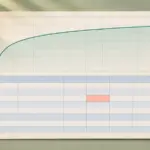
Select the two sparklines and open Axis on the Sparkline tab. Check that they belong to the same group. Set the vertical minimum and maximum to Same for All Sparklines, or use custom values of 10 and 50 for both. Individual automatic scales can show a similar shape even though South is higher throughout. A shared scale makes that difference visible.
For a missing quarter, check Sparkline → Edit Data → Hidden & Empty Cells. Leave a gap when the value is unknown. Use zero only when it is the value you want represented.
Microsoft’s guide to sparklines, axes, and missing values
Update the values or clear just the sparklines
Change E2 from 20 to 25 and check that the final point in F2 moves upward. When you add a quarter, include the new column through Edit Data and keep the source separate from the destination.
To remove a chart, select its cell and use Clear on the Sparkline tab. Choose the option for the selected sparklines when you need to keep the rest of the group. Pressing Delete on a cell is a separate action for cell contents.