Minecraft Bedrock World Save Location on Windows: Backup and Restore
Minecraft: Bedrock Edition for Windows currently stores local world saves in account-specific folders under %AppData%\Minecraft Bedrock\Users. Older Windows versions of the game used a folder under %LocalAppData%\Packages, so check the new location first if an older guide's path no longer opens. To back up or move a world to another PC, copy its complete folder or export a .mcworld file from the game.
The current Bedrock world save location
Minecraft for Windows changed its storage location when Bedrock version 1.21.120 moved to the Game Development Kit (GDK). According to the official 1.21.120 changelog, existing worlds and content move to %AppData%\Minecraft Bedrock when that version first launches.
The account-specific world path is below. <User ID> is a placeholder: choose an actual account folder instead of pasting the placeholder literally.
%AppData%\Minecraft Bedrock\Users\<User ID>\games\com.mojang\minecraftWorlds
- Open File Explorer. Press
Win + Eand select the address bar. - Paste the following path and press Enter. This opens the folder containing the game accounts.
%AppData%\Minecraft Bedrock\Users
- Look for the numeric user ID folder. If there is more than one, identify the folder containing the worlds for the account you use.
- Open
games → com.mojang → minecraftWorlds. The subfolders inside represent individual worlds.
%AppData% is an environment variable pointing to AppData\Roaming for the Windows account currently signed in. You do not need to type your Windows username or drive letter. Pasting the path into File Explorer works even when the AppData folder is hidden.
Microsoft's documentation on existing Bedrock worlds identifies the user ID folder as the location of ordinary game worlds. The Users\Shared path in the GDK migration documentation is used for shared content such as development packs. Do not conclude that your personal worlds are missing after checking only that shared folder.
The older Windows Bedrock save location
The older Universal Windows Platform (UWP) version of Minecraft for Windows stored worlds at the following location. Check it when using an older installation or looking for saves left behind by a previous version.
%LocalAppData%\Packages\Microsoft.MinecraftUWP_8wekyb3d8bbwe\LocalState\games\com.mojang\minecraftWorlds
%LocalAppData% points to the current Windows account's AppData\Local folder. For example, if the Windows username is JB and the user folder is on drive C, the full path is:
C:\Users\JB\AppData\Local\Packages\Microsoft.MinecraftUWP_8wekyb3d8bbwe\LocalState\games\com.mojang\minecraftWorlds
A missing old folder does not by itself mean that your worlds were deleted. After an update, check the current location first. If both locations contain files, do not assume that the old copy matches the world you are playing now. Compare the world name shown in the game with the files' modification times.
Identifying a world with an unfamiliar folder name
A folder name inside minecraftWorlds can differ from the name displayed in the game's world list. Names containing letters, numbers, and symbols can be normal world folders.
Open levelname.txt inside a world folder with Notepad to see the world's name. You do not need to change or save the file to identify the world. If several worlds have the same name, compare their modification times with the game's world list.
For a backup, do not copy only levelname.txt or level.dat. A world consists of multiple files, so preserve the entire individual world folder.
Backing up and restoring world folders
Folder copying is convenient when you have several local worlds. An exported file is easier to handle when sending one world to another PC. Whichever method you choose, keep the original backup until you have checked that the restored world opens correctly.
| Method | What you keep | When to use it |
|---|---|---|
| Copy world folders | Individual world folders or the entire minecraftWorlds folder | Backing up several local worlds together or keeping a file-level copy |
| Export a world in the game | A .mcworld file for each exported world | Transferring one world or restoring it through the game's import process |
Making a folder backup
- Save and quit the world, then close Minecraft completely. Copying a world while it is running can mix files from an ongoing save.
- Open the
minecraftWorldsfolder currently in use. Choose the current path or the older path that your installation actually uses. - Copy the world folder you want. To preserve all local worlds in that account, copy the entire
minecraftWorldsfolder. Copy the originals rather than cutting and moving them. - Paste the copy somewhere else. Keep it outside the game's save location, such as on an external drive or in a separate backup folder. Use dated backup folders to distinguish copies.
A second copy on the same drive helps you recover from accidental changes. To protect against a drive failure as well, keep another copy on a separate storage device.
Restoring folders or moving them to another PC
- Launch Bedrock Edition on the destination PC and check the account. If necessary, create a temporary world to identify the active save location, then close the game.
- Back up the destination PC's existing worlds first. If a folder has the same name as the one you plan to restore, preserve it separately rather than immediately overwriting it.
- Copy each backed-up world folder into the destination's
minecraftWorlds. Avoid an extra nesting level such asminecraftWorlds\minecraftWorlds\WorldFolder. - Restart Minecraft and check the world. Confirm that it appears in the world list, then enter it and inspect important builds and progress.
If the restore goes wrong, close the game, move the newly added folder outside the active save location, and put back the destination PC's original folder from the copy you preserved. Before copying, record which folders are originals and which are restored copies to avoid mixing them up.
Backing up with world export and import
If you prefer not to work with internal save folders, use the game's world export option. A .mcworld file bundles the files needed to load a Bedrock world. Microsoft's Minecraft file extension reference explains this format.
Exporting a world
- Save and quit the world, then open the world list. Select the Edit button for the world you want to export.
- Find Export World under File Management in General settings. The English menu path is
General → File Management → Export World. Labels and placement can vary with the version and language. - Choose a destination and filename. Save the
.mcworldfile to an external drive or backup folder. Including the world name and backup date helps distinguish files.
Microsoft's world export instructions show this menu path. Export each world separately; if you have many worlds, you can also keep a folder backup. The game's Copy World feature creates a copy within the same save environment, so distinguish that from a backup stored on another device.
Importing a world
- Check that Minecraft: Bedrock Edition for Windows is installed on the destination PC. Copy your backed-up
.mcworldfile to that computer. - Double-click the file. Minecraft opens and imports the world. If the file association is missing, choose Bedrock Edition as the app to open it.
- Check the completion message and world list. Open the imported world and inspect its contents. Rename the world in the game if you need to distinguish it from another copy.
Changing an arbitrary file's extension to .mcworld does not make it a valid world export. If importing fails, try a fresh export from the original game. Keep the original files until you have checked the imported world.
If the save folder is missing or a world does not appear
- Check the current path first. If
Microsoft.MinecraftUWP_8wekyb3d8bbweis missing or empty, open%AppData%\Minecraft Bedrock\Users. - Check both the Windows account and the game account.
%AppData%refers to the Windows user currently signed in. Worlds saved under a different Windows user or game account may be elsewhere. - Replace the placeholder with the actual account folder. Open the numeric folder rather than entering
<User ID>literally. With several accounts, inspect each account'sminecraftWorldsandlevelname.txtfiles. - Identify the active location. If a world is visible in the game but difficult to find in File Explorer, save a temporary world with a distinctive name, close Minecraft, and look for a
levelname.txtcontaining that name. - Check the copied folder structure. Each individual world folder should be directly inside the destination's
minecraftWorlds, with its world files inside it. Make sure you did not add an extra outer backup folder. - Check the game versions. Do not try to open a world saved by a newer version in an older game. Before updating or switching to Preview, preserve a separate backup and test with a copy.
To browse the folders manually in Windows 11, enable View → Show → Hidden items in File Explorer to make AppData easier to find. Pasting the environment-variable path into the address bar works without changing that setting.
Distinguishing Java Edition, Preview, server worlds, and Realms
The main paths in this guide apply to local worlds in Minecraft: Bedrock Edition for Windows. Different editions and devices do not all use the same save location.
- Java Edition: Its save format and folders differ from Bedrock's. Copying a Java world into a Bedrock save folder does not convert it.
- Minecraft Preview: The GDK version uses a separate base folder,
%AppData%\Minecraft Bedrock Preview. Keep it separate from the regular game and identify the account folder that actually contains your worlds. - Bedrock Dedicated Server: Server worlds are stored under
worldsin the server installation folder. Backing up a client's local worlds does not also back up a separate server's data. - Realms: The latest online Realm world is not necessarily present in your local
minecraftWorlds. If you have permission to manage that Realm, download a local copy through its world settings, check it, and back it up.
What Is Minecraft? Game Modes, Editions, and Getting Started
Learn what you can do in Minecraft, how Survival and Creative differ, and how to choose between Java and Bedrock Edition. This beginner's guide also explains multiplayer options and the essentials to check before your first world.

Minecraft Bedrock World Save Location on Windows: Backup and Restore
Find the current and legacy Minecraft Bedrock world folders on Windows and identify your saves. Learn how to back up, transfer, and restore worlds using folder copies or .mcworld exports.

Minecraft Efficiency Enchantment: Tools, Mining Speed, and Efficiency V
Understand which tools benefit from Efficiency and why mining speed varies. Learn how to obtain Efficiency V, assess instant-mining conditions, and maintain your tools.
Minecraft Biomes Explained: Types, Resources, and How to Find Them
Learn how Minecraft biomes differ across the Overworld, Nether, and End. Compare useful environments, distinguish biomes from structures, and find locations using debug information or commands.
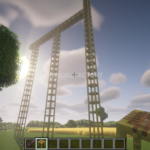
Minecraft Java Edition: How to Craft and Use Scaffolding
Learn the scaffolding recipe and Java Edition controls for building columns, climbing, extending platforms, and removing scaffolding. Screenshots explain the horizontal support limit and how to reuse the blocks.

Minecraft Enchantments: Enchanting Table, Anvil, and Gear Guide
Learn how to enchant Minecraft equipment, arrange 15 bookshelves, and apply enchanted books with an anvil. Compare useful effects, experience costs, and incompatible combinations to choose gear for your Survival world.

How to Show Coordinates in Minecraft Bedrock Edition
Learn how to show and hide coordinates in Minecraft Bedrock, read X, Y, and Z, and record your base location. The guide also covers copying coordinates and resolving permission problems in shared worlds.

Minecraft Fortune Enchantment: Uses, Tools, and How to Get Fortune III
Learn where Fortune improves block drops, which tools to use, and how it differs from Silk Touch. Follow the steps to obtain Fortune III and understand common drop exceptions.