Ping Test: How to Check Network Latency and Packet Loss
A ping test sends requests to a device or server to check whether it responds, how long replies take, and how many requests receive no reply. It helps narrow down problems when an internet or Wi-Fi connection feels slow or unstable. Ping does not measure download speed or verify every feature of a website, so understanding its limits is essential.
What a ping test tells you
A typical ping test sends an Echo Request using the Internet Control Message Protocol (ICMP) and waits for an Echo Reply. It measures the time between sending the request and receiving the reply. For Internet Protocol version 4 (IPv4), these messages are defined in RFC 792, the ICMP specification. Version 6 (IPv6) uses ICMPv6, defined in RFC 4443, the ICMPv6 specification.
- Response: Whether the target address replied to a particular request.
- Round-trip time (RTT): The time for a request to reach the target and a reply to return. It is usually measured in milliseconds (ms); 20ms is 0.02 seconds.
- Missing replies and packet loss: The proportion of requests that did not receive a reply. This can reflect connection problems, but filtering and timeout settings can also affect the result.
An internet speed test's Mbps, or megabits per second, describes data throughput; ping's milliseconds describe response delay. A connection can offer fast downloads while high or inconsistent latency still affects games and calls. Cloudflare's explanation of latency and bandwidth describes this distinction.
When is a ping test useful?
Ping is useful for intermittent problems as well as complete connection failures. Compare your usual results with measurements taken while the problem is happening.
- Online games feel unresponsive: Look for sudden increases in latency or missing replies. A ping to an arbitrary external server is not the same as the game's actual server latency.
- Voice or video calls keep breaking up: Check variation and missing replies as well as the average. Device performance and the calling service may also need investigation.
- Wi-Fi is connected, but internet access is unstable: Test your router and an external address separately to decide which part of the connection to investigate first.
- You are comparing router placement or connection types: Keep the target and settings consistent while comparing locations, Wi-Fi, and wired connections.
- You cannot reach a local device: Try the actual IP address of a computer or network-attached storage (NAS) device you manage. The target must allow ping replies.
A single result does not prove that your router or internet provider is at fault. Use ping to identify the next useful check.
Choosing an address to test
Enter an IP address or hostname. A hostname can be a domain name such as google.com. Do not paste an entire web URL containing https://, a port number, or a page path.
- Your router: Use the default gateway for your active connection. On Windows, run
ipconfigand find “Default Gateway” under the Wi-Fi or Ethernet adapter you are using. If several adapters appear, identify the connected one. - An external address: Choose an external server to check. For example,
8.8.8.8is a Google Public DNS IPv4 address. A ping to it checks ICMP replies from that address; it does not test the complete Domain Name System (DNS) lookup process. - A specific device: Find its actual address in the router's administration interface or the device's network settings.
192.168.0.1is an example router address, not a universal value.
ipconfig
Microsoft's ipconfig documentation explains the displayed IP and gateway information. A virtual private network (VPN) can change the path, so record your connection conditions when comparing results. Private addresses in your home are normally tested from the same local network.
How to run a ping test on Windows, Linux, and Android
Windows
- Press
Win + R, entercmd, and open Command Prompt. You can also use PowerShell. - Enter
pingfollowed by the target address, as shown below. A normal ping test does not require administrator privileges.
ping google.com
- Read the reply time for each request and the final statistics. Windows sends four requests by default, then stops.
The destination IP and response times depend on your environment. To watch for intermittent interruptions, run a continuous test and observe it while the problem occurs. Press Ctrl + C to stop.
ping -t 8.8.8.8
Linux
In a Linux terminal, such as on Ubuntu, run the following command. This guide describes iputils ping; other implementations can use different options.
ping google.com
Without a request count, ping continues sending requests. Press Ctrl + C to stop and display sent and received packet counts, packet loss, and round-trip statistics.
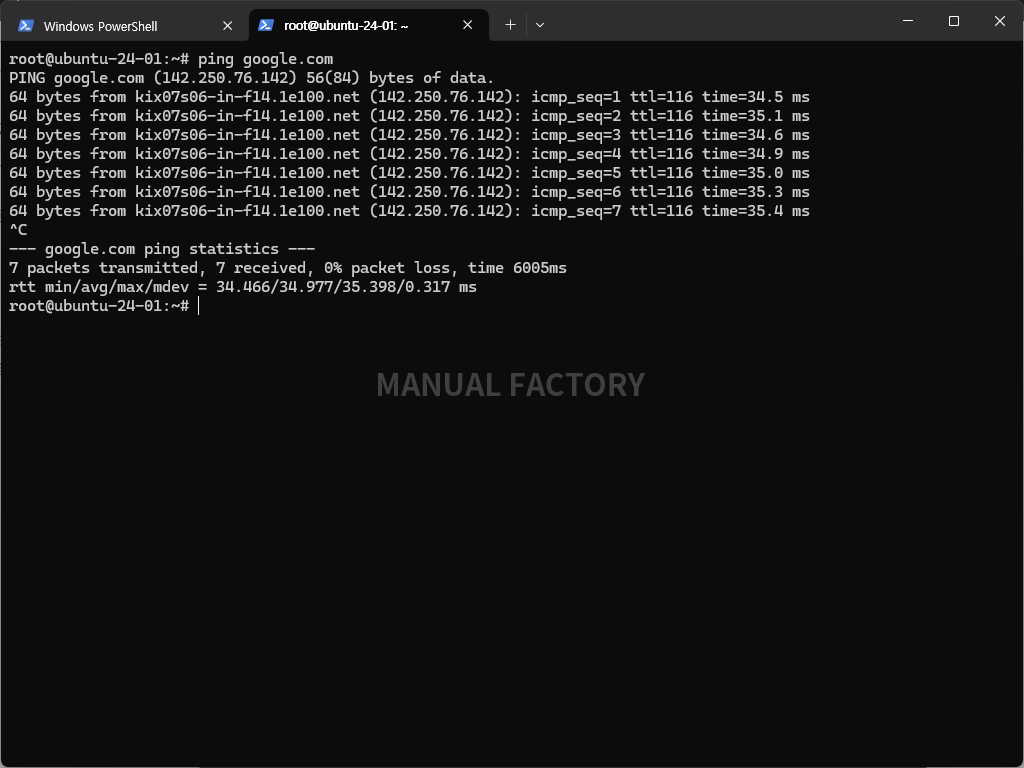
The screenshot is an existing example of an Ubuntu terminal session; your IP address, reply times, and packet counts can differ. Use -c to set a fixed count. The command below sends ten requests and stops. If the command is not found, check whether your distribution's ping package is installed.
ping -c 10 8.8.8.8
Android
On a phone, you can enter the same target address in a ping app. For example, Ping - JB Tool lets you configure the request count, interval, timeout, and IPv4 or IPv6 mode. It displays a live latency graph, response statistics, and packet loss, and supports favorites, history, and result sharing. The app includes banner ads.
To check Wi-Fi, connect to that Wi-Fi network, enter the target IP or hostname, and start a test. Begin with a limited request count, then use continuous testing if you need to observe an intermittent problem. A phone measures its own connection, so its Wi-Fi results should not be treated as measurements of a wired computer's connection.
Common ping command options
Option names and units differ between operating systems. In particular, Windows -w and Linux -w do not mean the same thing.
Windows options
| Option | Purpose | Example |
|---|---|---|
-t |
Continue until stopped. | ping -t 8.8.8.8 |
-n count |
Set the number of requests. | ping -n 10 8.8.8.8 |
-w timeout |
Set the wait for each reply, in milliseconds. | ping -w 3000 8.8.8.8 |
-l size |
Set the request's data-field size, in bytes. | ping -l 1024 8.8.8.8 |
-4 / -6 |
Choose IPv4 or IPv6 when testing a hostname. | ping -4 google.com |
You can combine options. The following command sends up to ten requests and waits up to three seconds for each reply. See Microsoft's ping command documentation for details.
ping -n 10 -w 3000 8.8.8.8
Linux iputils options
| Option | Purpose | Example |
|---|---|---|
-c count |
Set the number of requests. | ping -c 10 8.8.8.8 |
-i interval |
Set the request interval, in seconds. | ping -i 1 8.8.8.8 |
-W timeout |
Set the response timeout, in seconds. | ping -W 3 8.8.8.8 |
-w deadline |
Set an overall deadline for the test, in seconds. | ping -w 10 8.8.8.8 |
-s size |
Set the request's data-field size, in bytes. | ping -s 1024 8.8.8.8 |
-4 / -6 |
Use IPv4 or IPv6. | ping -4 google.com |
-W uses an uppercase W. In iputils, waiting behavior differs depending on whether replies have been received, so do not interpret it as every request always waiting for exactly that duration. The iputils ping manual source explains the behavior. For ordinary comparisons, keep the data size and interval at their defaults or use the same values in each test.
How to read ping test results
Look at time in individual replies, then compare packet loss and minimum, average, and maximum times in the summary. A low average alone does not guarantee a stable connection.
| Metric | Meaning | What to consider |
|---|---|---|
| Reply time | The round-trip time of one request and reply. | It is not a page's total loading time or one-way delay. |
| Minimum, average, maximum | Timing statistics for requests that received replies. | Check whether maximum values repeatedly spike, as well as the average. |
| Packet loss | The proportion of sent requests that received no reply. | Consider the request count, timeout, and target's response policy. |
mdev |
The standard deviation of round-trip times in Linux iputils. | A larger value indicates greater variation. Do not assume another tool's jitter metric uses the same calculation. |
TTL |
The remaining Time To Live value in an IPv4 reply packet. | It is not a latency or speed score. Initial values and routes differ, so it is not a reliable performance comparison on its own. |
For example, if you send 100 requests and receive 97 replies, the missing-reply loss rate is 3%. This is a calculation example, not a measurement. Four replies with no loss do not rule out an intermittent problem.
A connection that stays near 20ms can feel different from one that is usually 20ms but occasionally reaches 200ms. Rather than relying on a universal “good ping” threshold, compare the same target and settings under normal conditions and during the problem. A nearby router and a distant server use different paths, so comparing their numbers directly does not tell you which internet connection is better.
A practical sequence for narrowing down connection problems
For home or office troubleshooting, start with the nearest part of the connection and change one condition at a time.
- Identify the active connection and default gateway. Record whether you are using Ethernet, Wi-Fi, or a VPN, and find the actual router address.
- Test the router. On Windows, use a command such as
ping -n 30 192.168.0.1, replacing the example address with your gateway. Repeated delays or missing replies here make the device-to-router connection a useful place to investigate first. - Test an external address with the same request count. If the router responds consistently but the external target does not, investigate the external path and the target's response policy. This alone does not prove an internet-provider fault.
- Change one condition and start a new test. Move closer to the router or, if possible, connect the same computer by Ethernet. Wi-Fi and mobile data use different paths, so a difference does not identify a particular faulty device.
- Record results while the problem occurs. Include the time, target, connection type, request count, maximum response time, and loss rate. These details make further troubleshooting or support requests more useful.
If the router blocks ping replies, step two cannot determine whether the local connection is healthy. Check another local device you manage, or compare with actual service connectivity. Cisco's explanation of ping and troubleshooting covers these diagnostic steps and response restrictions.
What if ping fails, or a website still will not open?
No ping reply does not necessarily mean the device is off or your internet connection is down. The target or an intermediate firewall may block or limit ICMP. Conversely, successful ping replies can coexist with a broken web service.
- “Could not find host”: Name resolution may have failed before a request could be sent. Check for a typo and inspect the name-resolution settings. A reply from a different, unrelated IP does not prove the original domain's server is working.
- “Request timed out”: No reply arrived within the waiting period. Check the address, route, response policy, and whether your timeout is too short.
- “Destination host unreachable”: Your computer or a device along the path may be reporting that it cannot deliver the request. Check the reporting address along with your current IP and gateway settings.
- Ping works, but the website fails: Separately investigate the service port, server application, DNS, and browser or proxy settings.
In Windows PowerShell, you can also test a Transmission Control Protocol (TCP) port connection. If TcpTestSucceeded is True, the TCP connection was established; that does not verify login or every feature of the page.
Test-NetConnection -ComputerName www.google.com -Port 443
Microsoft's Test-NetConnection documentation explains the scope of this check. Replace the hostname and port with those of the service you actually need to troubleshoot.
If a Windows computer you manage needs to answer ping, allow the required inbound ICMP Echo Request rule rather than disabling the entire firewall. Microsoft's instructions for creating an inbound ICMP rule explain the available settings. Check the network profile and allowed source scope, and disable or remove a rule added temporarily for troubleshooting when it is no longer needed.

Ping Test: How to Check Network Latency and Packet Loss
Learn how to run a ping test on Windows, Linux, and Android and interpret response times and packet loss. Compare command options and follow a practical sequence to narrow down connection problems.

Network Port Ranges: Well-Known, Registered, and Dynamic Ports
Learn how IANA divides network ports into well-known, registered, and dynamic ranges. The guide also explains why a registered port does not identify a running service and why a system's ephemeral-port range may differ.

ChatGPT / GPT-5.6 or GPT-6 Astra? Choosing a Model by Task
Choose a ChatGPT model and reasoning level based on task complexity, speed, and the quality you need. This guide explains when GPT-5.6, GPT-6 Astra, higher reasoning, or a Pro option may be useful for writing, coding, and analysis.

Laser Printers / Features, Advantages, and Disadvantages
Understand how laser printers work, what toner and drums do, and where the technology's strengths and limitations matter. Compare document printing, consumable costs, paper compatibility, and inkjet alternatives to decide whether a laser printer suits your needs.

TTF, TTC, OTF, and OTC Font Files: Differences and How to Choose
TTF and OTF usually contain one font; TTC and OTC are collections that can hold several. Learn what each extension indicates, what it does not, and how to choose a file to install.

What Is Adobe Firefly? Features, Free Access, and Commercial Use
Explore Adobe Firefly's image, video, and audio tools and learn how to create your first image. This guide also covers generative credits, commercial use, and submitting images to Adobe Stock.

Home Printer Buying Guide / Printing Technologies, Running Costs, and Essential Features
Choose a home printer by matching its printing technology, maintenance needs, and total running costs to your usage. Compare inkjet, ink tank, and laser options, along with two-sided printing, scanning, wireless connections, and installation requirements.